Jobs, Orders & Stops
Job management software that gets every route ready
Create, import, validate and manage deliveries, pickups and service jobs, so every route starts with accurate, complete information.
- Create jobs manually, by CSV or via API
- Validate addresses and identify duplicates
- Set handling, access and proof requirements
- Update jobs in bulk and repeat recurring work

The jobs workspace
Job management that feeds straight into planning
Create, import, validate and organise your jobs in one place, then send them straight into planning.
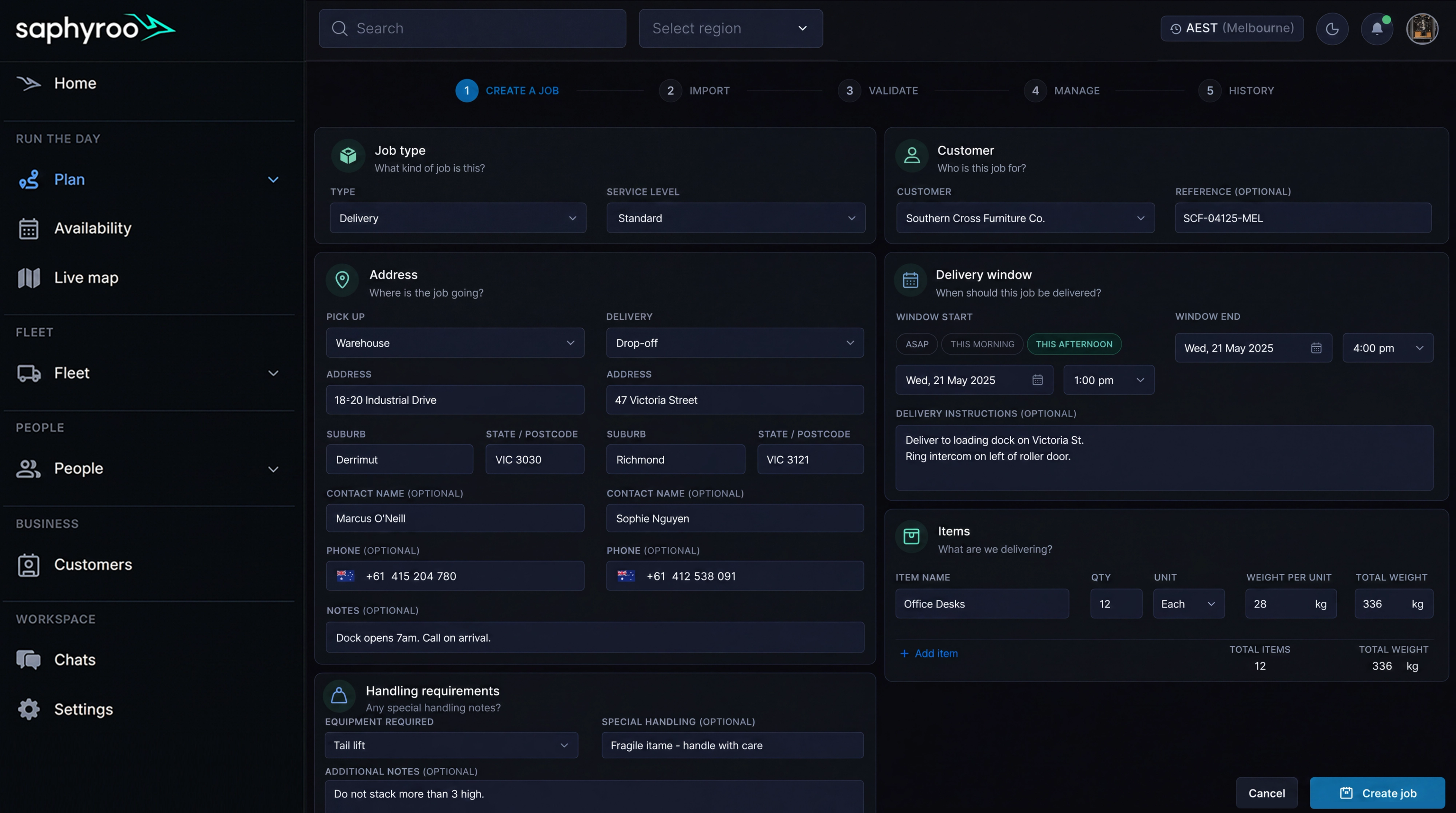
Every Detail Needed to Get the Stop Right
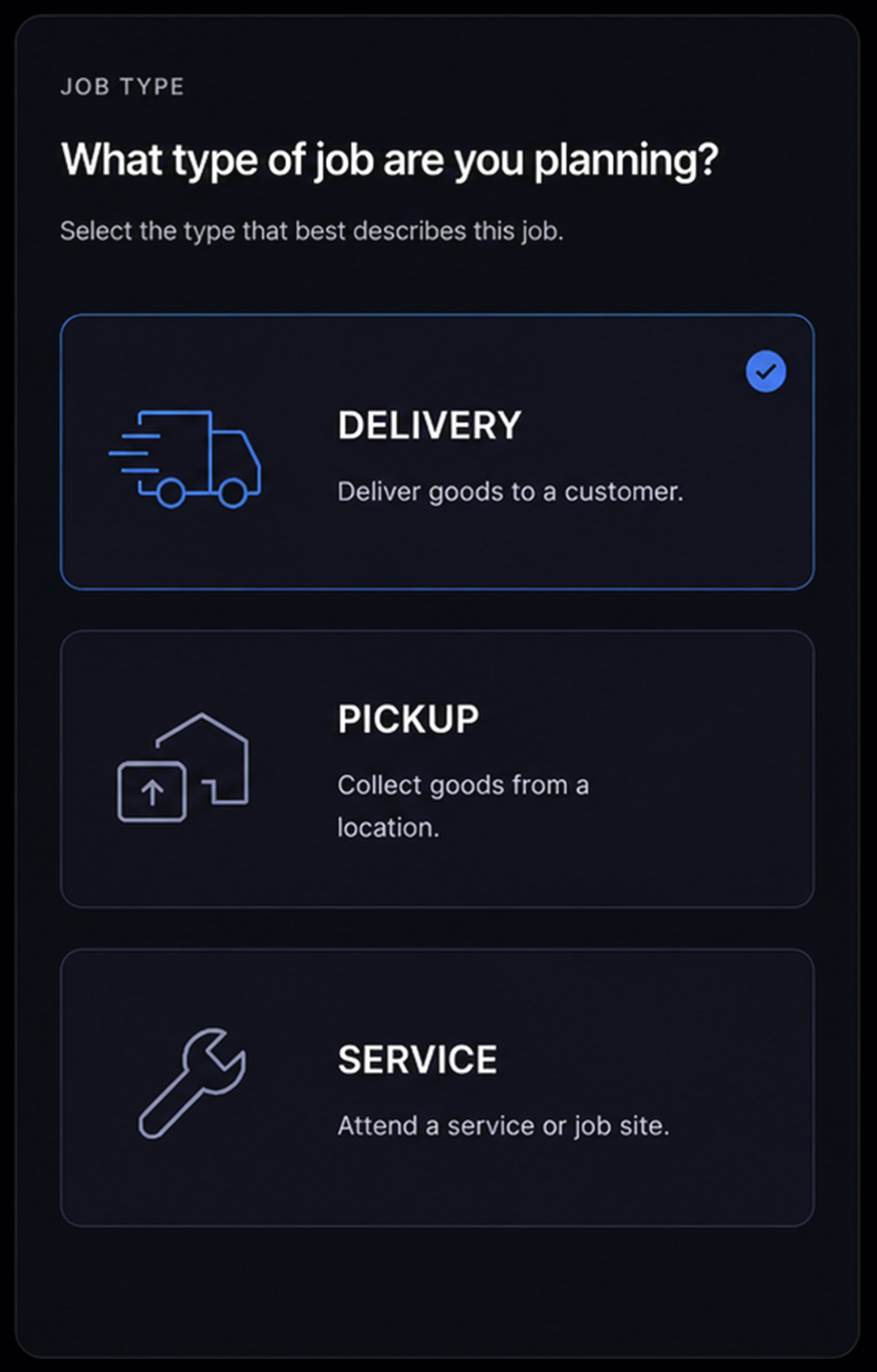
Job types. Manage deliveries, pickups and service calls, each with the details and requirements that matter.

Address validation, before the route is built. Every address is checked and matched to the right location before planning, helping prevent address errors from reaching the route.
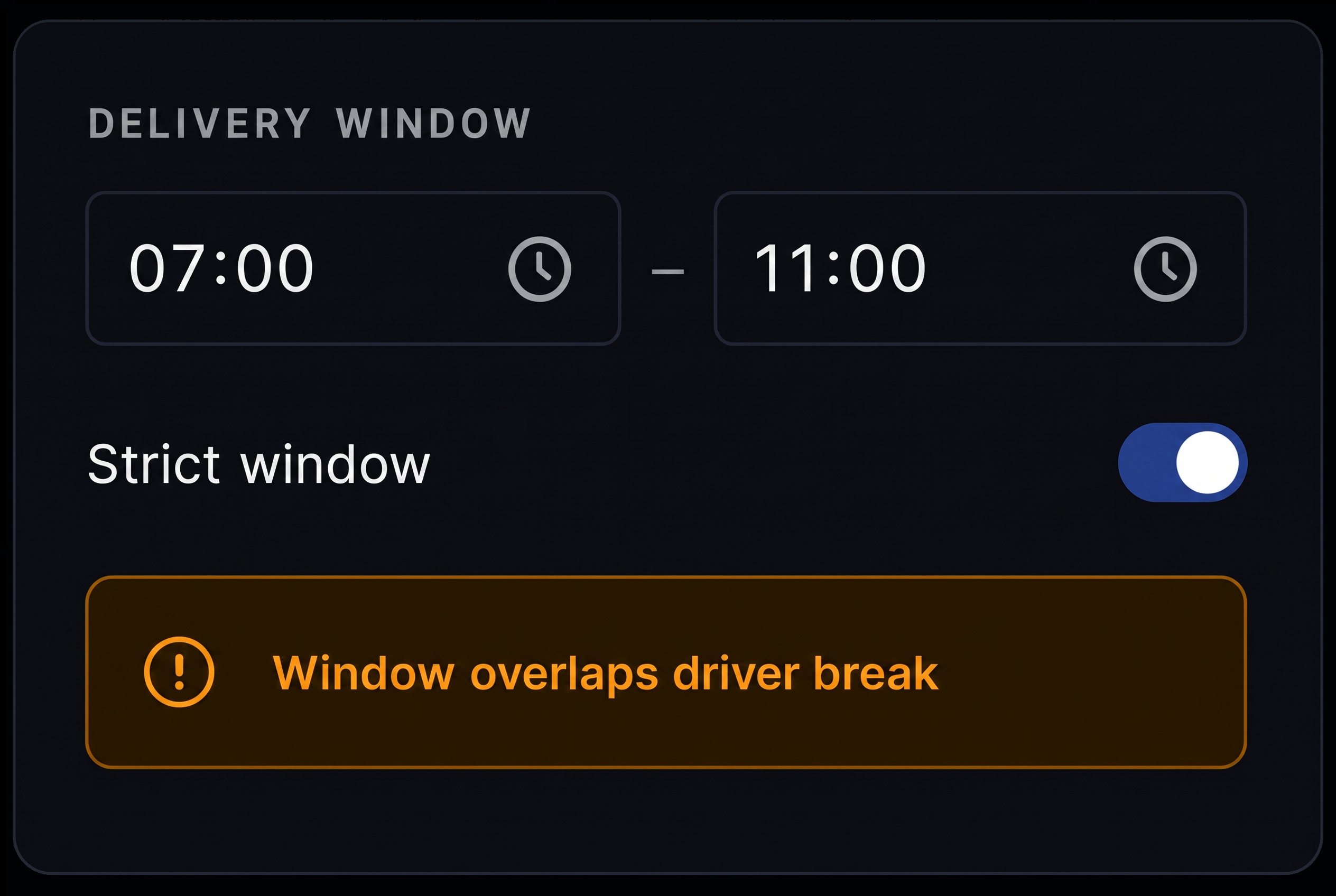
Time windows. Set service, pickup and delivery windows for each stop and factor them into every plan.
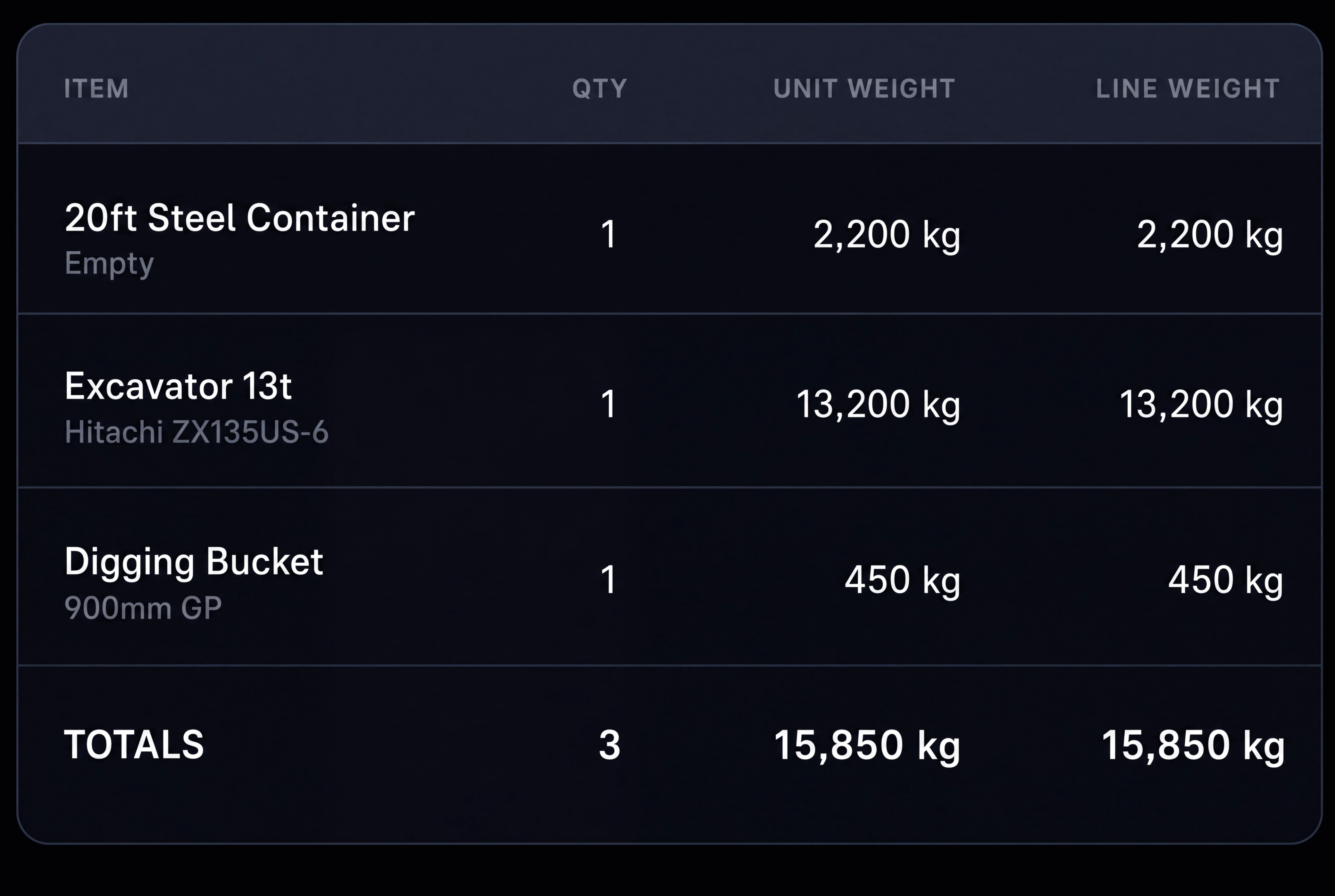
Items and quantities. Capture items, quantities and weight so the right vehicle capacity can be planned.
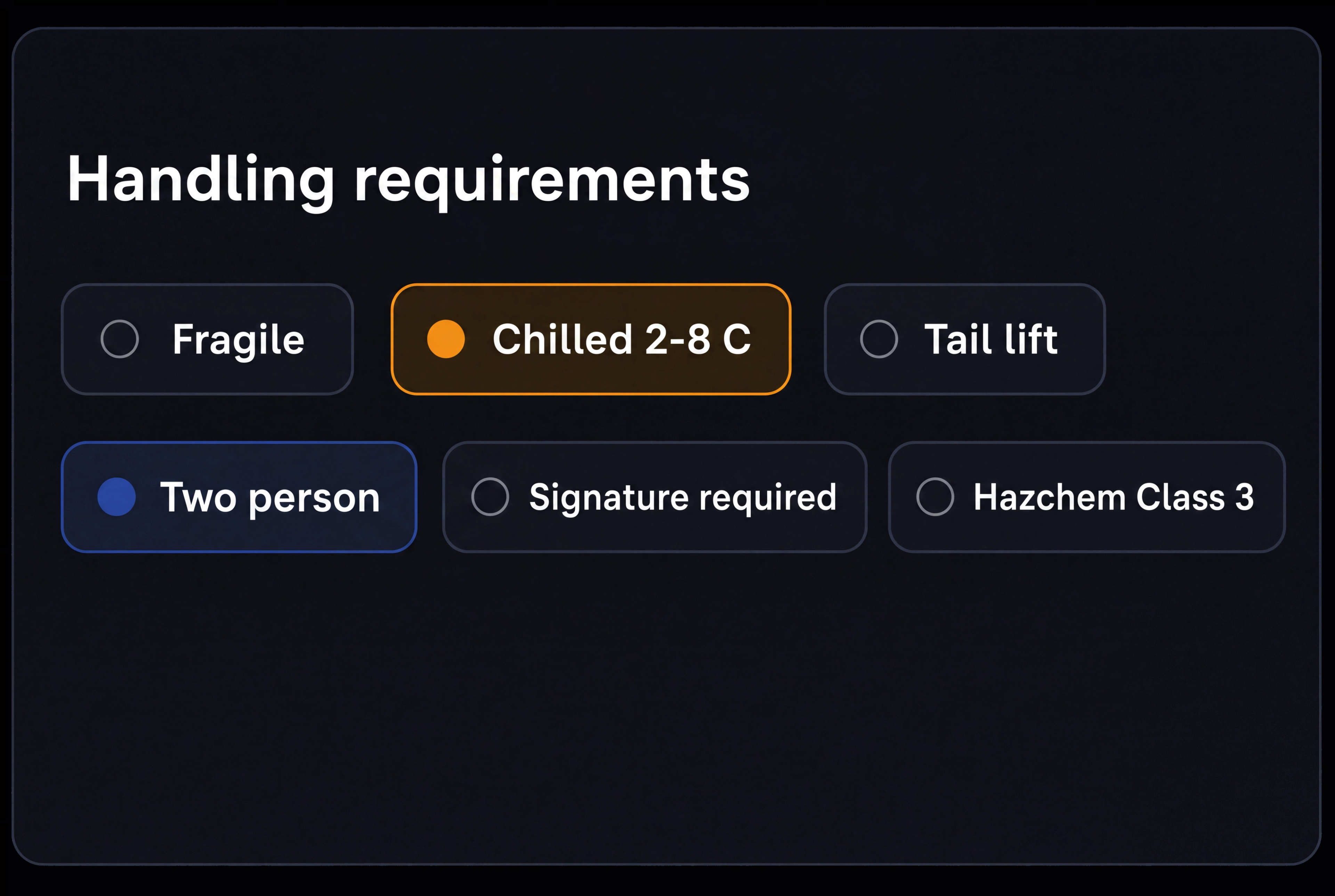
Handling requirements. Set specific requirements such as tail lift, refrigeration, two person lift or hazardous goods handling.
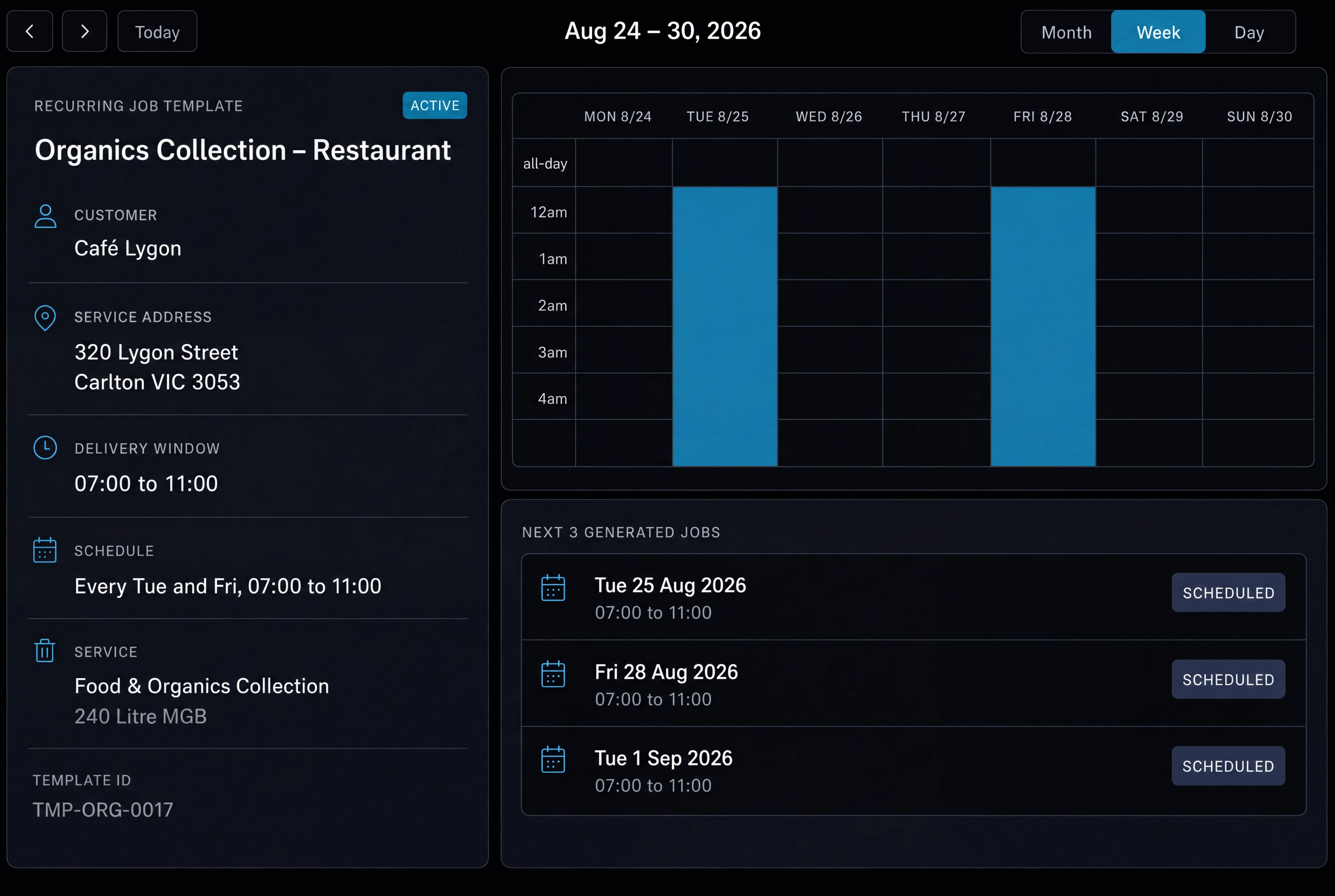
Set recurring jobs once. Save the job details and Route360 automatically creates each new job according to your schedule.
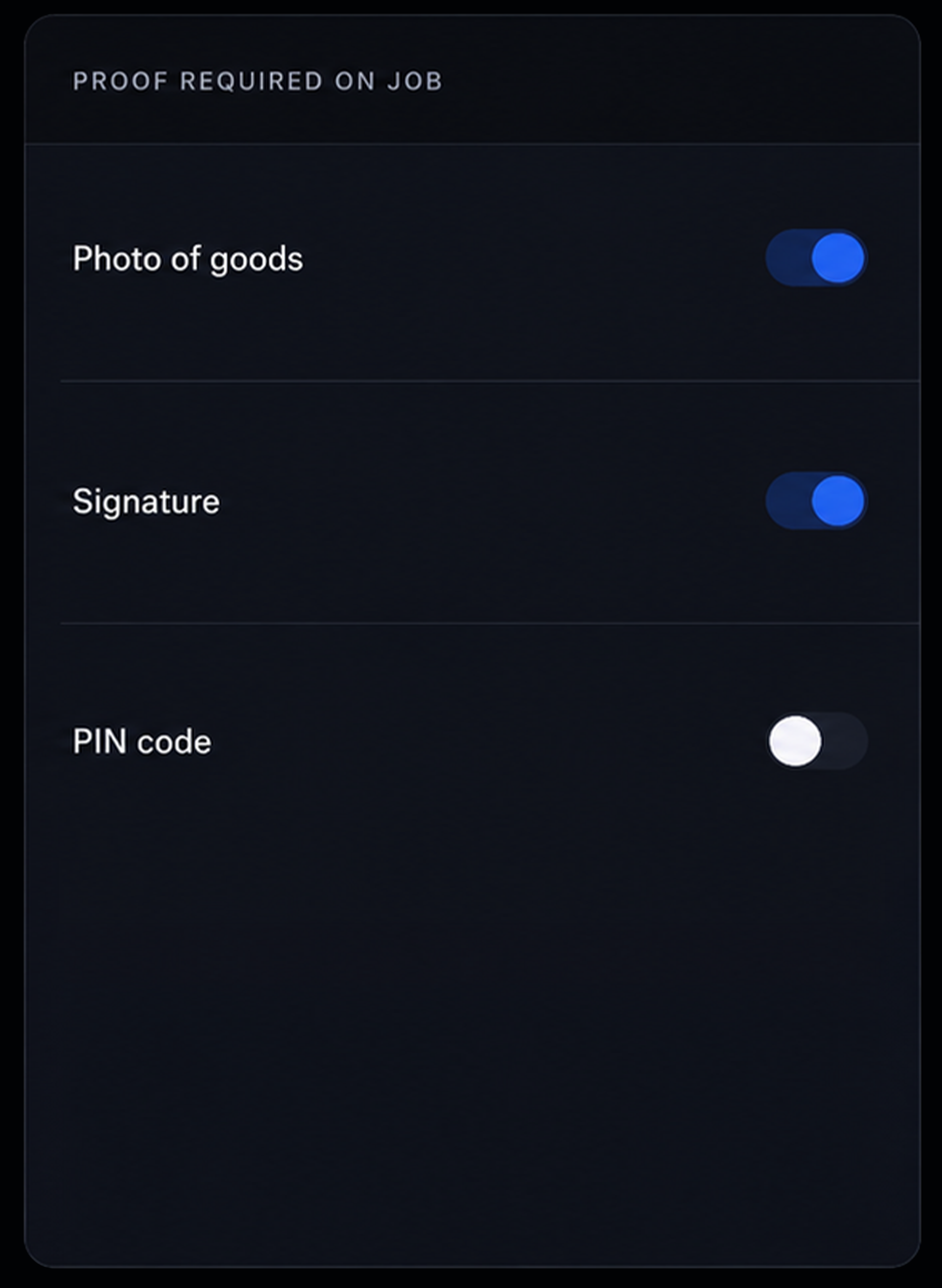
Proof requirements. Set exactly what the driver needs to capture for each job, rather than applying the same requirements across the whole route.

From Spreadsheet to Schedule
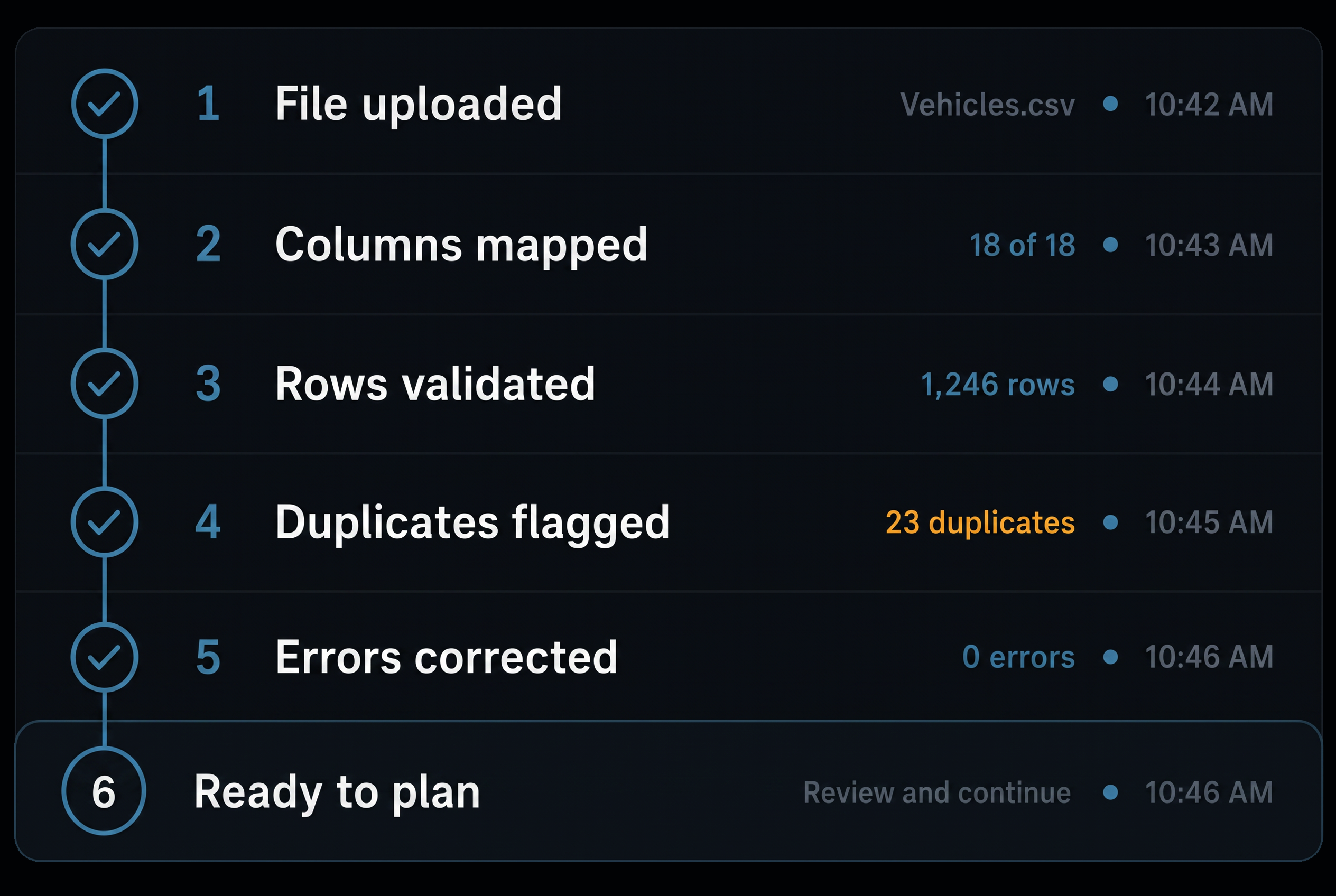
Import the day’s work from your spreadsheet, resolve any flagged issues and send a ready to plan set of jobs straight into Route360.
- 1
Import your jobs
Upload a spreadsheet or bring jobs in directly from your existing system.
- 2
Map your columns once
Match your existing fields to Route360 and save the setup for future imports.
- 3
Check your jobs
Route360 checks the job details and flags anything that needs attention.
- 4
Fix what’s flagged
See exactly where the issue is and correct it without the whole file failing.
- 5
Send to planning
Once your jobs are ready, send them straight into route planning.
Additional features
Saved Filters
Save the views your team uses most.
Priorities
Highlight jobs that need to be completed first.
Depot Assignment
Assign each job to the right depot.
Customer Records
Reuse addresses, contacts and customer instructions.
Site Instructions
Give drivers the access and site information they need at each stop.
Bulk Import
Import a full day of jobs in one file.
API Access
Bring jobs in directly from your existing systems.
Job Status
Track each job from unplanned and assigned through to completed or failed.
Duplicate Detection
Identify potential duplicate jobs before they reach planning.
Linked pickup and delivery
Keep related pickups and deliveries together through planning.
Recurring Templates
Set up repeat jobs once and generate them automatically.
Activity history
See every change made to a job, including who made it and when.
Frequently Asked Questions
How do jobs get into Route360?
Create jobs directly in Route360, upload them by CSV or bring them in from your existing system via API. However they arrive, every job is managed and checked in the same workspace.
What does validation actually check?
Route360 checks that addresses are valid, required job details are complete and potential duplicates are identified. If something needs attention, the affected job is flagged so you can fix it without the whole file failing.
Can a pickup and a delivery be linked?
Yes. Related pickups and deliveries stay linked through planning, helping ensure the collection and drop off are planned together.
How is recurring work handled?
Set up recurring work once with the customer, address, time window, items and proof requirements. Route360 then creates the jobs automatically based on the schedule you set.
Where do handling and access requirements go?
Requirements are attached to the individual job, so they stay with it even if the route changes. This can include tail lift, refrigeration, two person lift, hazardous goods, site access instructions and proof requirements.
Better Planning Starts with Better Job Data
Create, import, validate and manage every job in one workspace.
- Secure, role based access
- Complete audit trail of every change
- Communication via app, SMS and email
- Available across web and mobile