Dispatch & Assignment
Dispatch Software That Turns Plans Into Runs
Match each route with the right drivers and vehicles, check everything is ready to go and keep the day moving when plans change.
- Match drivers and vehicles
- Check everything is ready
- Publish and adapt to changes
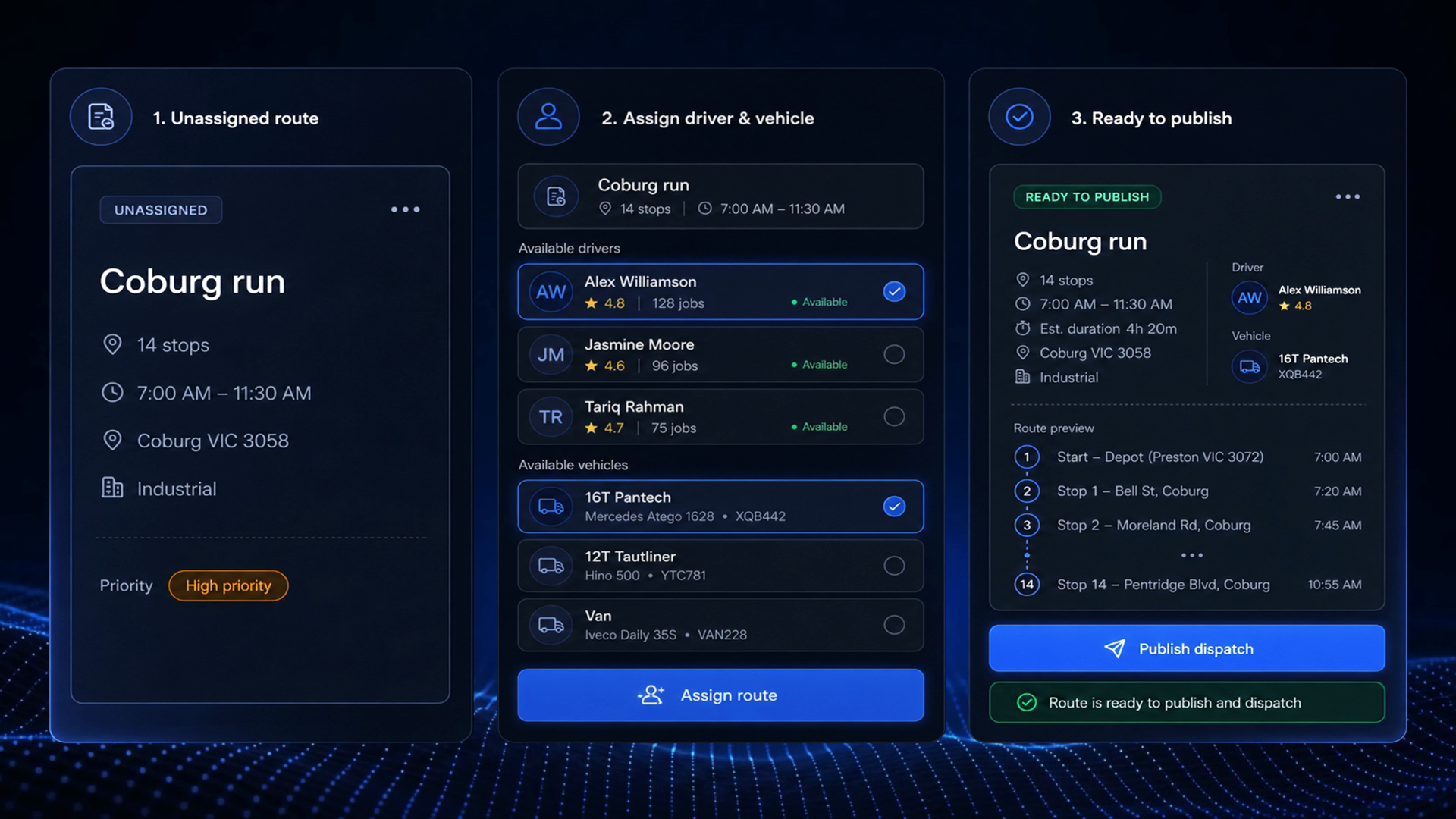
How Dispatch Works
Take your planned routes, match them with the right drivers and vehicles, check everything is ready and publish the day.
- 1
Match
Route360 identifies the drivers and vehicles that meet the route requirements and shows you why they’re a match.

- 2
Check
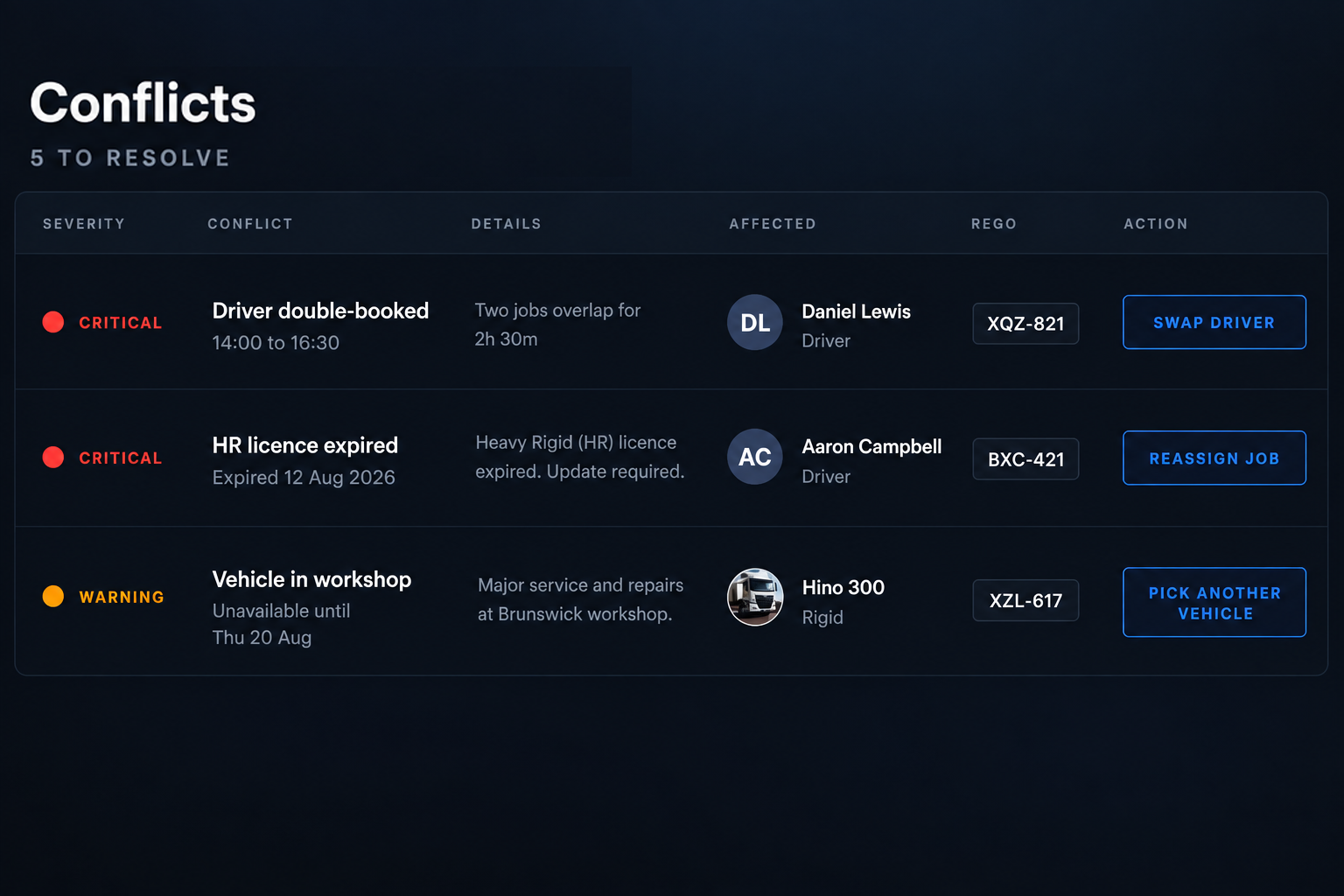
Route360 checks the requirements before the route is published and clearly flags anything that needs attention.
- 3
Publish
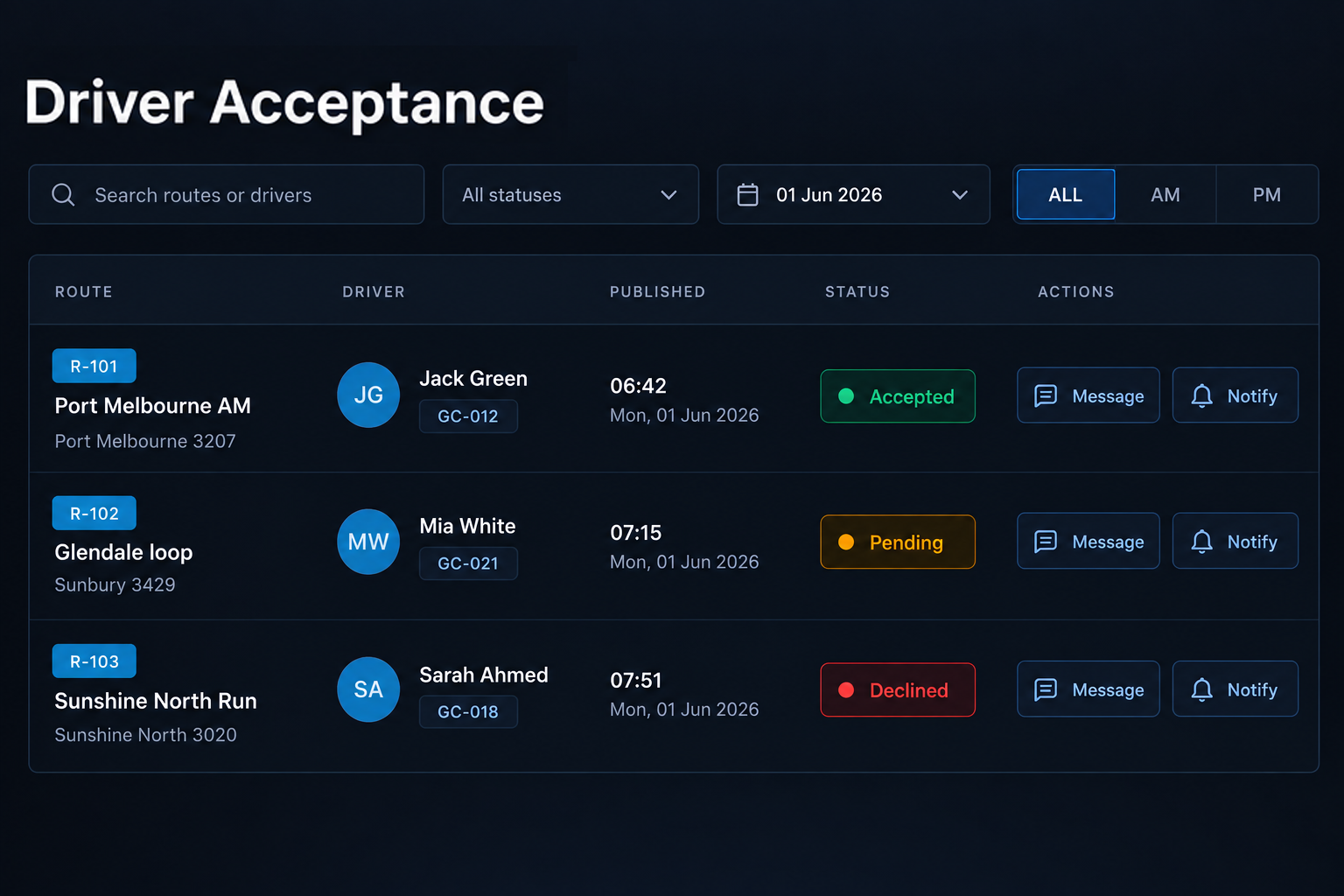
Send routes to drivers for acceptance and see who has accepted, who’s still pending and what has changed.
Every Route, Driver and Vehicle on One Dispatch Board

Unassigned routes. See what still needs assigning, with the jobs, distance and duration for every route.
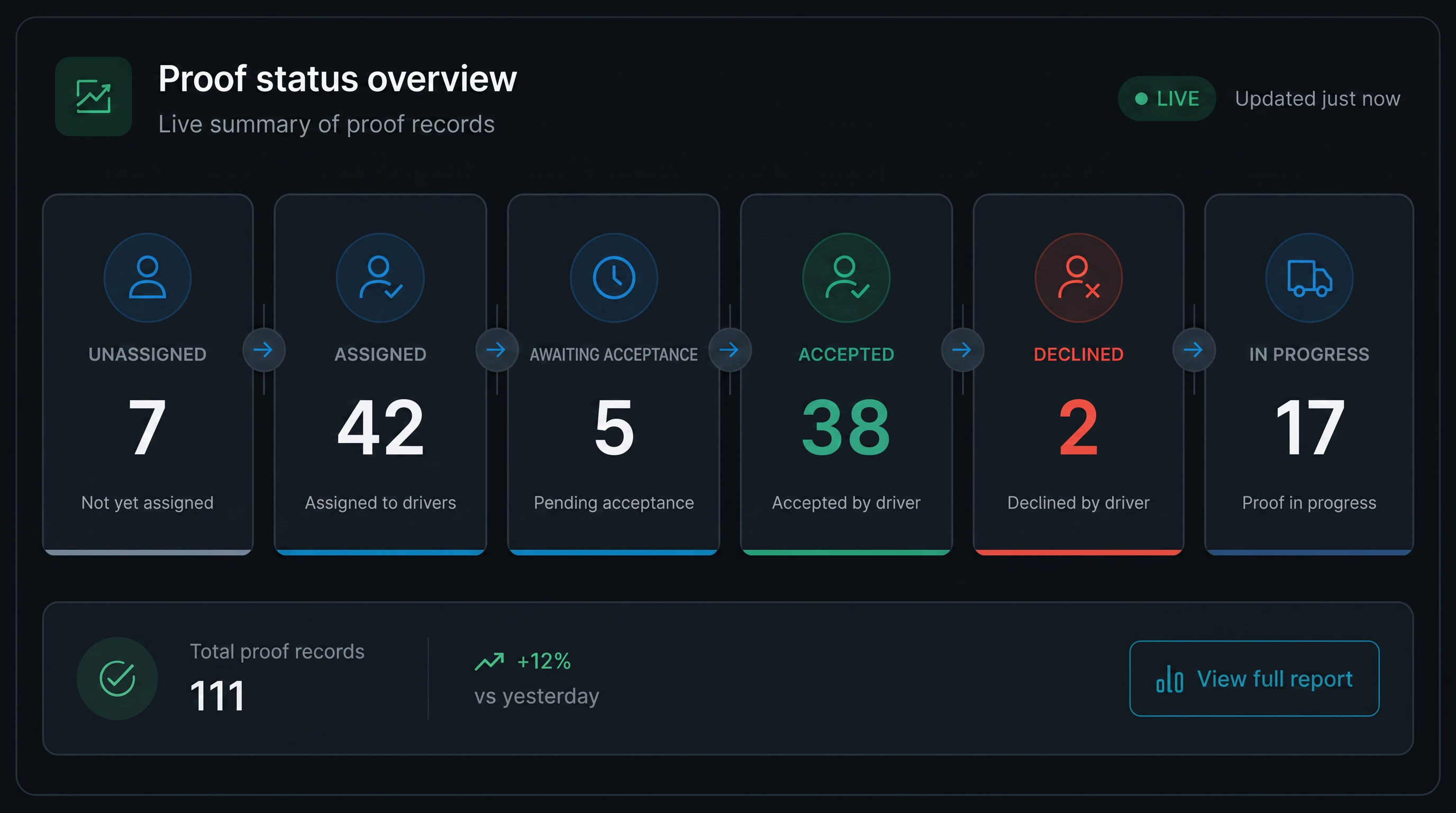
Your entire dispatch operation in one view. See unassigned, ready to assign, awaiting acceptance, in progress, completed and conflicted routes in one live view.
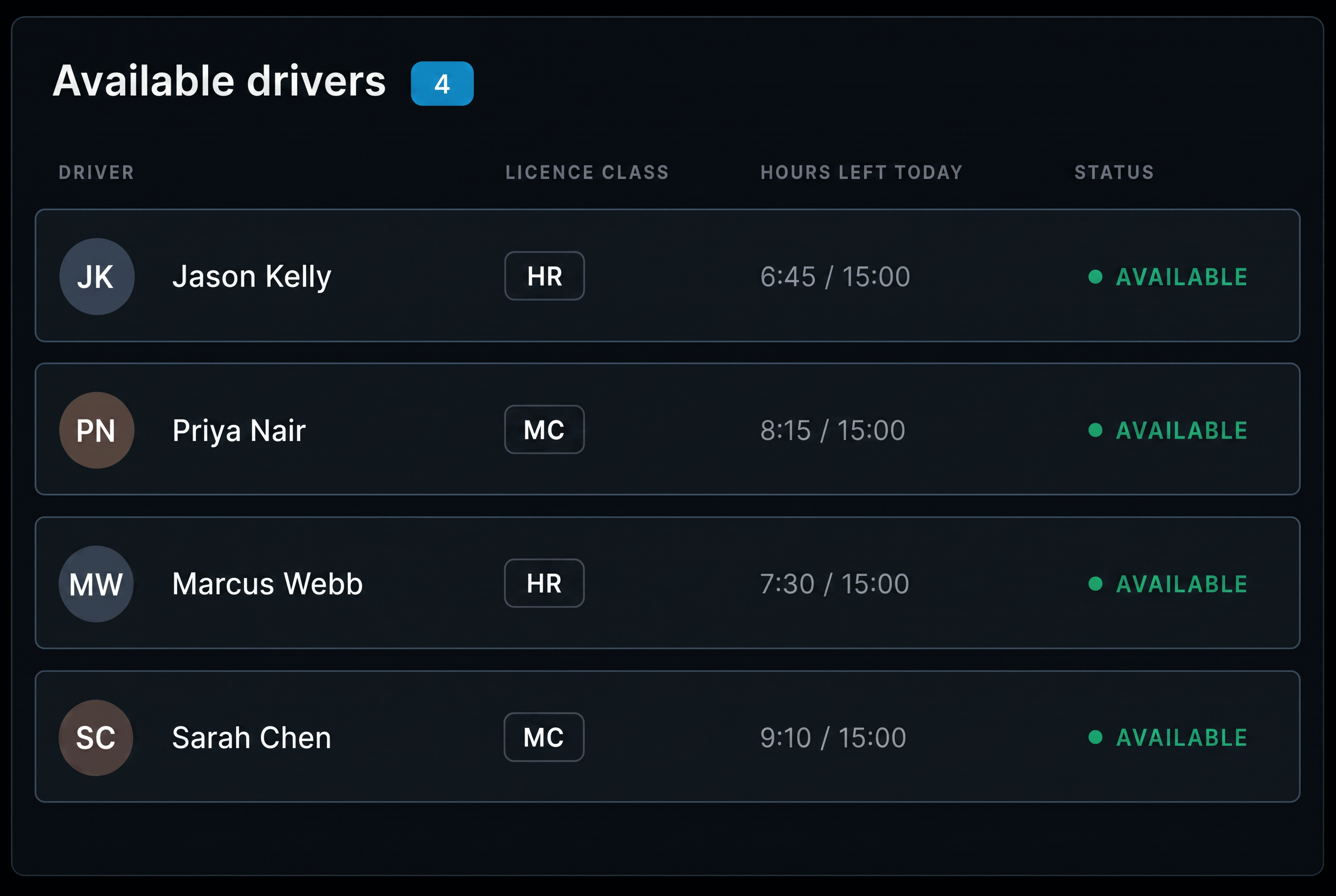
Available drivers. See each driver’s availability, licence class, work and rest status and home depot.

Available vehicles. See vehicle type, capacity, depot and maintenance and operational readiness at a glance.
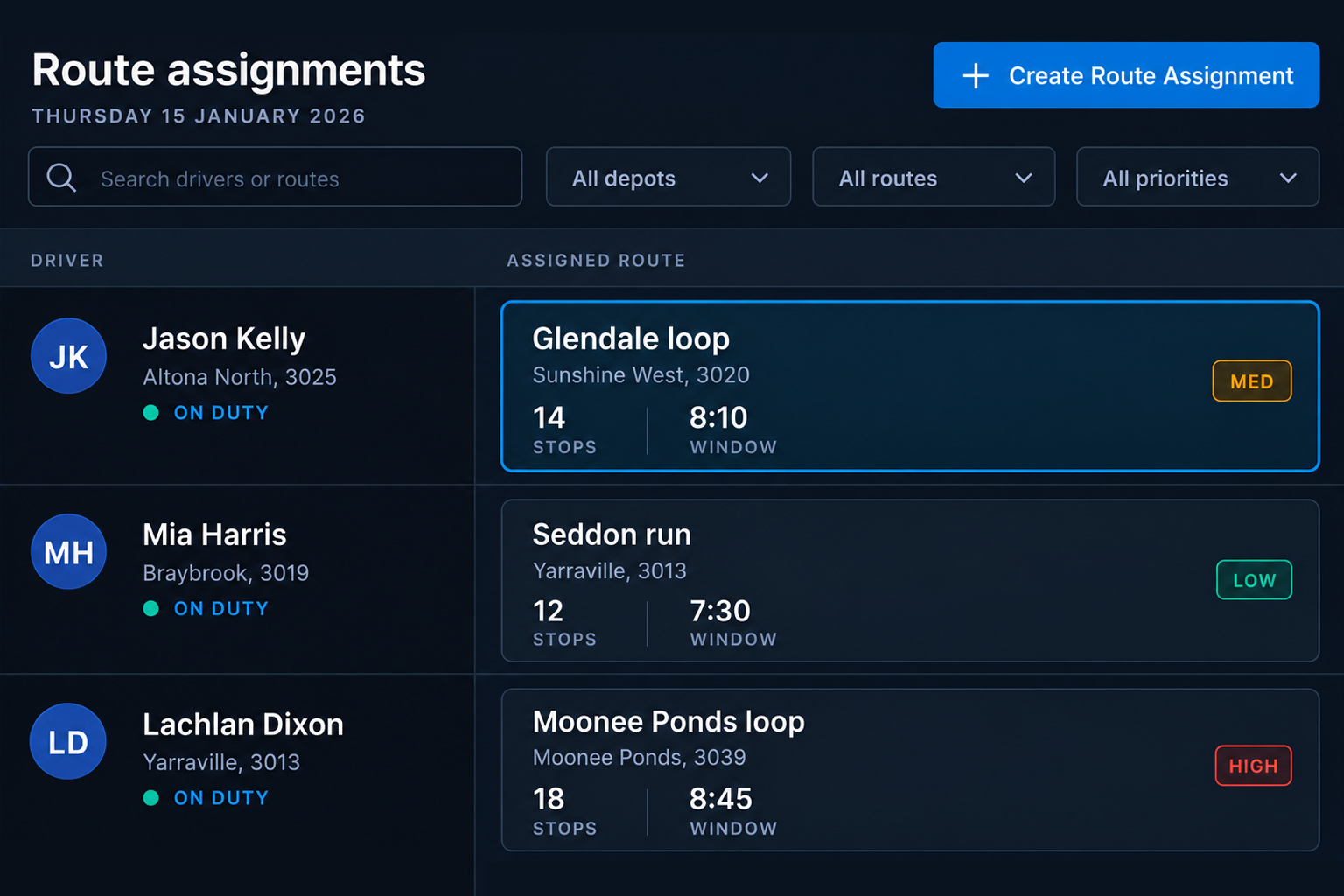
Drag to assign. Drag a route onto the right driver and vehicle to make the assignment.
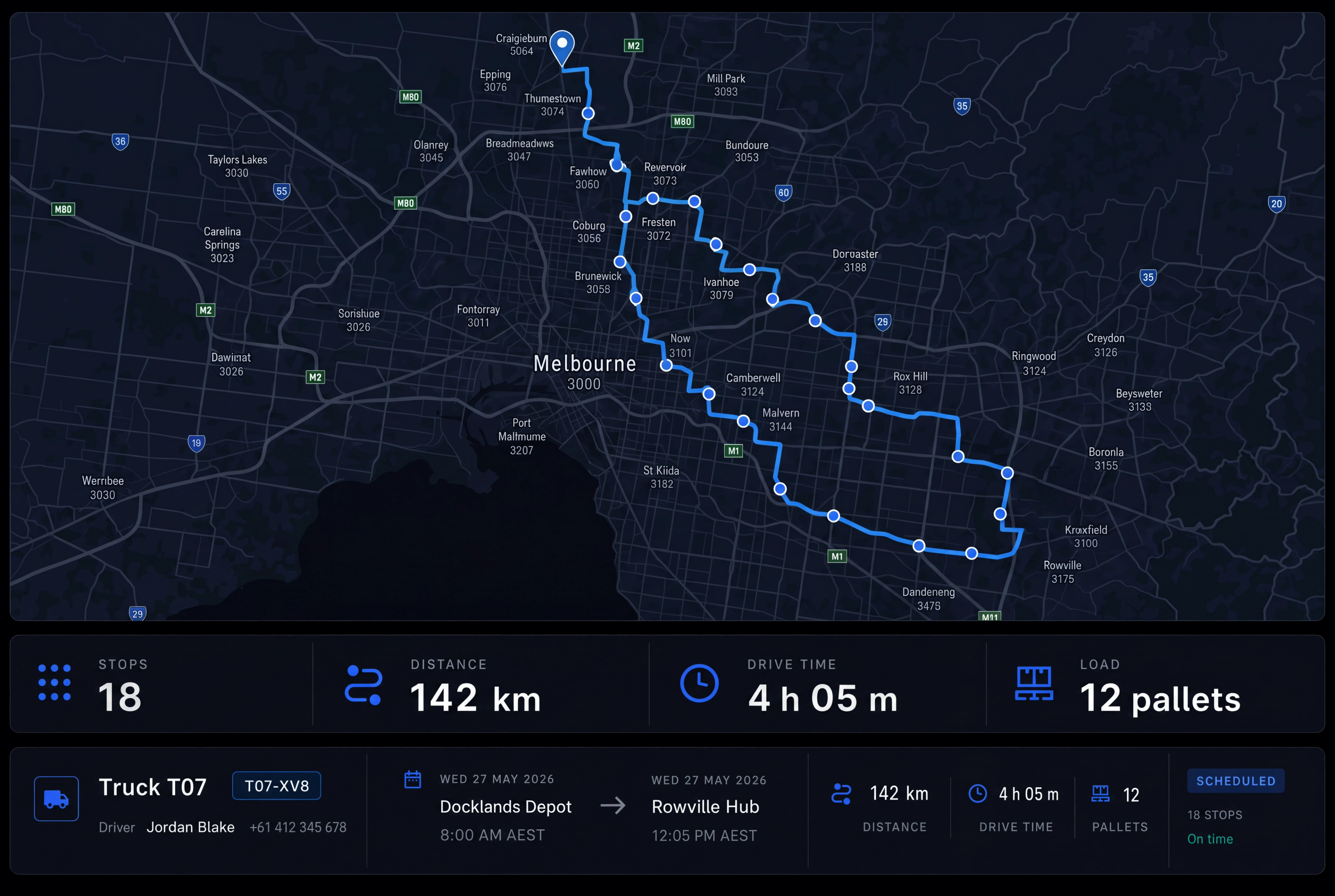
Route summary before you assign. See the jobs, distance, duration, capacity, expected time window performance and any special requirements in one view.
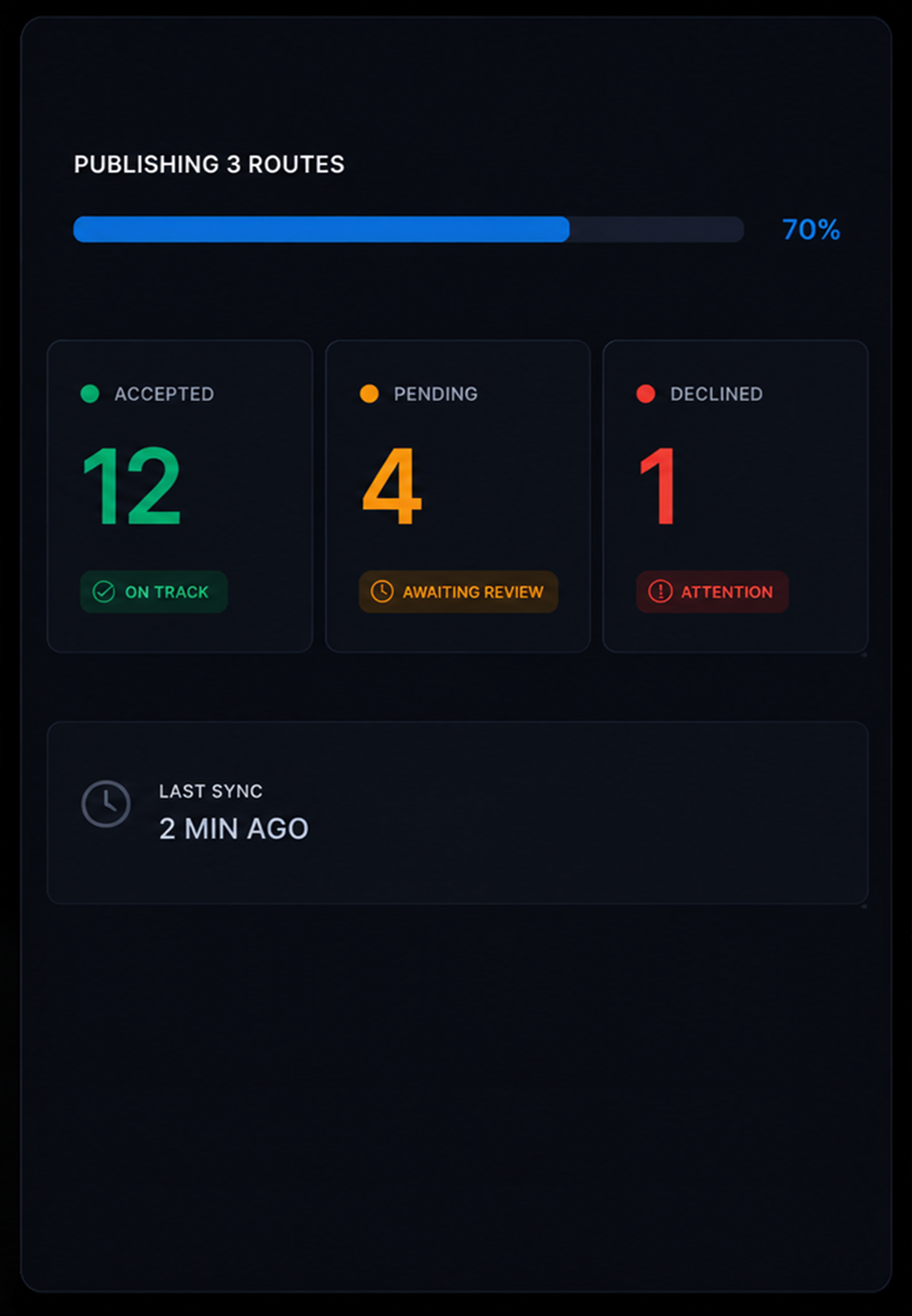
Live route status. See which drivers are on route, delayed or at risk, with open issues highlighted as the day unfolds.

Respond When the Plan Changes
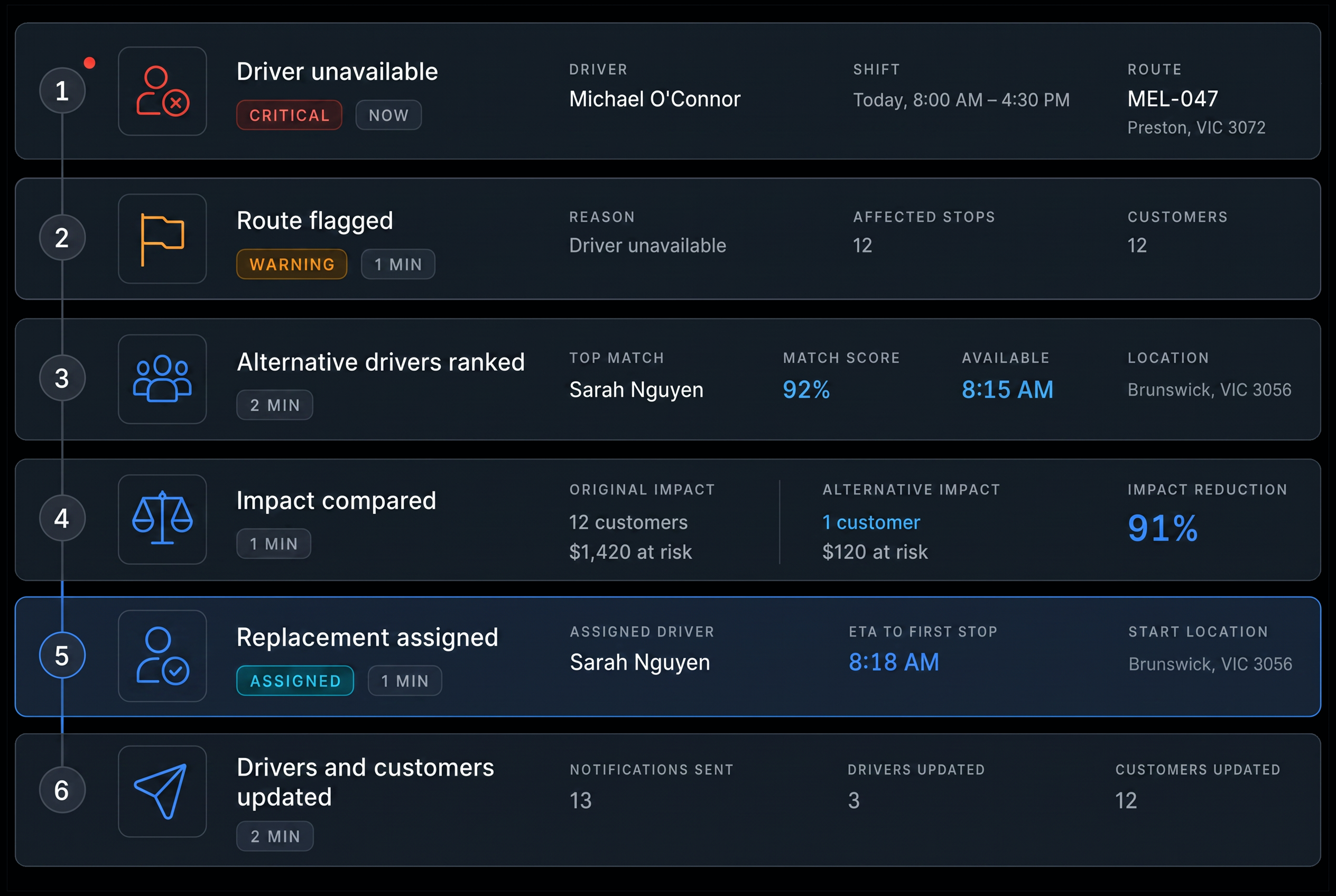
When the day changes, Route360 helps you respond quickly. If a driver becomes unavailable, it identifies the affected work, finds suitable replacements and shows the impact of each option before you reassign the route.
- 1
Driver becomes unavailable
Affected routes are immediately identified and flagged for attention.
- 2
Affected route flagged
The route is clearly marked, with the affected jobs and key route details in view.
- 3
Alternative drivers
See the best available replacements based on what the route requires.
- 4
Compare impact
Compare the effect of each replacement on ETAs, distance and scheduled time windows.
- 5
Replacement assigned
The new driver takes over and the updated route is ready to go.
- 6
Drivers and customers updated
The new driver receives the updated route and customers are notified of any changes to their ETA.
Additional features
Auto Assign
Suggest assignments across the whole board in one go.
Assignment Rules
Match routes based on depot, operating area and skill requirements.
Driver Acceptance
Track accepted, pending and declined routes.
Driver Activity
See live progress across every route.
Dispatcher Notes
Keep notes and messages attached to each route.
Change History
See every reassignment, including who made it and when.
Bulk Publish
Send all ready routes at once.
Conflict Alerts
Flag licence, capacity, maintenance and work/rest issues.
Depot Filters
Focus on one depot or view the whole network.
Capacity View
See vehicle utilisation before assigning.
Skill Matching
Match drivers by licences, endorsements and qualifications.
Route Summary
See jobs, distance, duration and capacity for each route.
Frequently Asked Questions
How does Route360 decide which driver suits a route?
Route360 uses available driver and vehicle information to assess potential matches, including availability, licence and skill requirements, work and rest information, vehicle capacity and availability, depot, operating area and existing assignments. Dispatchers can see the relevant information before making the final assignment.
What stops an unsafe or non compliant assignment going out?
Route360 flags potential conflicts before a route is published, including driver availability, licence requirements, work and rest limits, vehicle capacity and maintenance status. Dispatchers can review and resolve any issues before the route goes out.
Do drivers have to accept a route?
Yes. Published routes are sent to drivers for acceptance, while the dispatch board shows which routes are accepted, pending or declined.
What happens when a driver becomes unavailable mid shift?
Route360 flags the affected routes and identifies suitable replacement drivers. You can compare the impact on ETAs, distance and time windows before choosing a replacement. Once reassigned, the updated route is published and the driver and customers are notified.
Where does the driver and vehicle data come from?
Drive360 provides the driver and vehicle information Route360 needs for assignment, including availability, licences, work and rest status, vehicle capacity and maintenance readiness. Route360 then handles the route assignment, publishing and updates.
Assign Every Route With Confidence
Match the right drivers and vehicles, check requirements, publish routes and respond to change from one board.
- Secure, role based access
- Complete audit trail of every change
- Communication via app, SMS and email
- Available across web and mobile