Delivery Exceptions & Replanning
Keep the Operation Moving Through Delivery Exceptions
Detect issues, understand their impact and reassign work without losing sight of drivers, routes or customers.
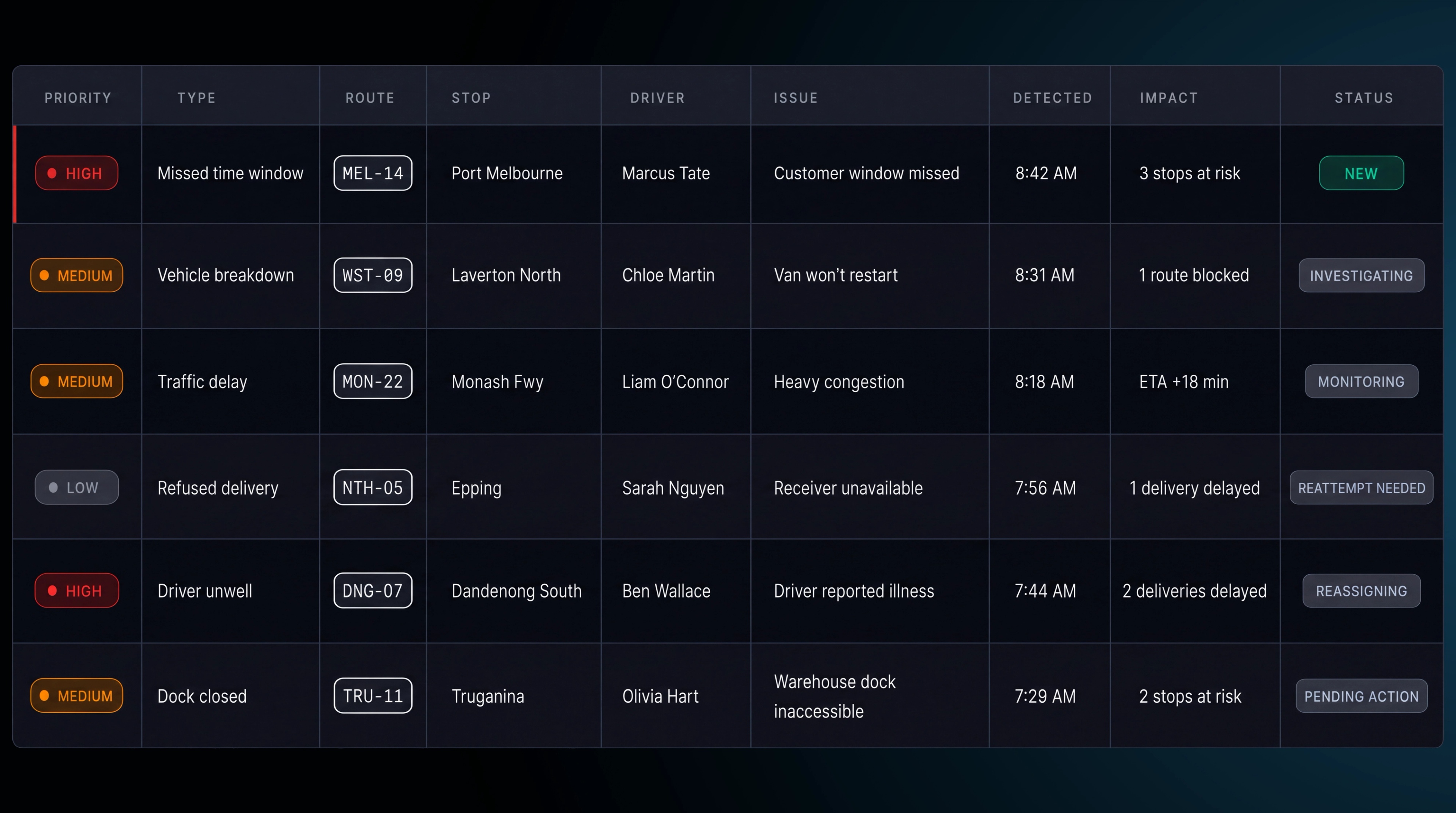
- Detect delivery exceptions
- Compare replanning options
- Reassign and reschedule work
- Update drivers and customers
- Keep routes moving
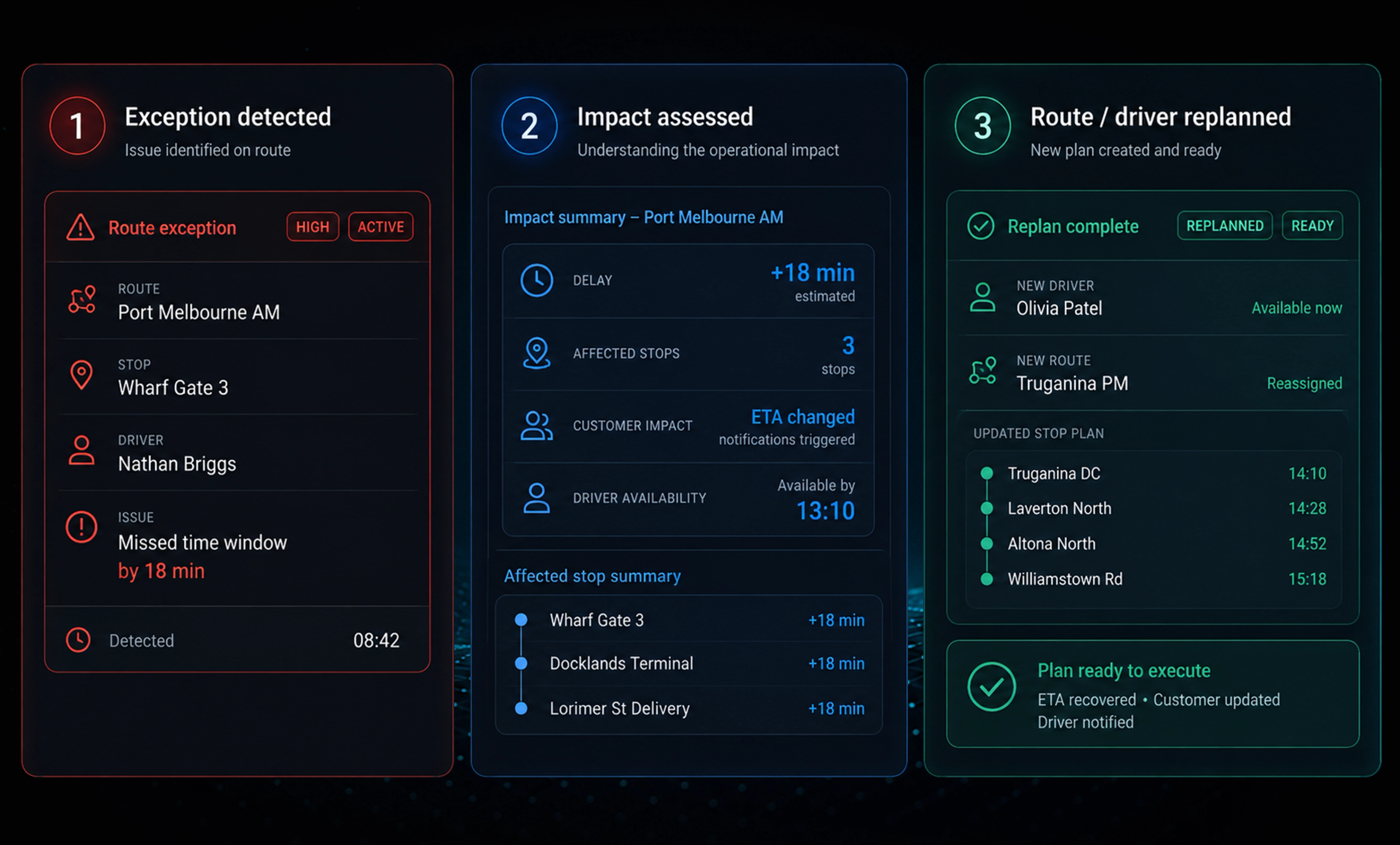
THE REPLANNING WORKSPACE
Work Around the Exception. Keep the Plan.
Move selected work, compare the impact and check the new plan before applying any changes.
What Happens When Changes Are Applied

Driver notified. The change is sent to the driver in the app for acceptance.
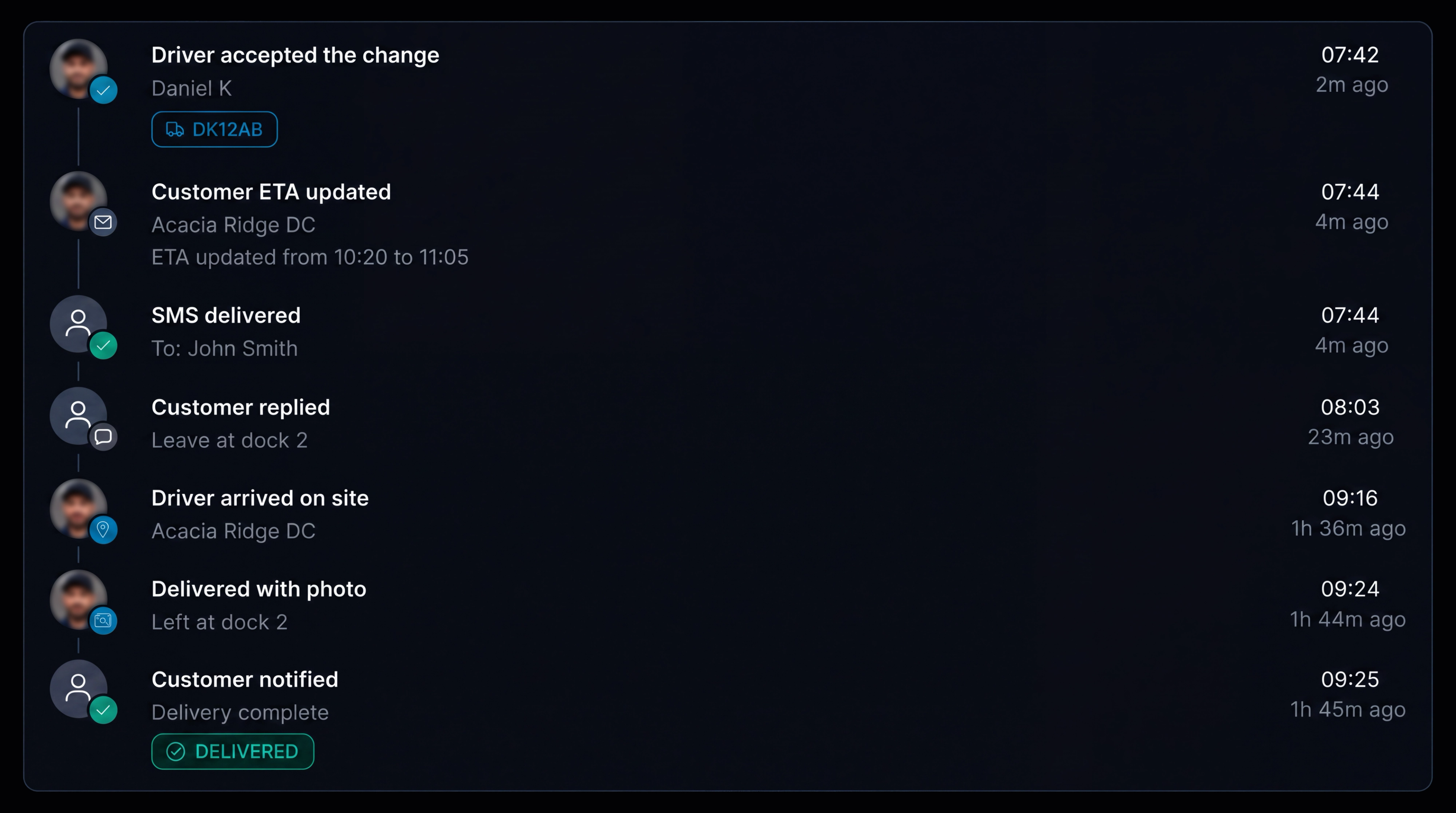
Updates sent. Driver updates, customer ETA changes and message delivery are recorded in sequence, with each event timestamped.
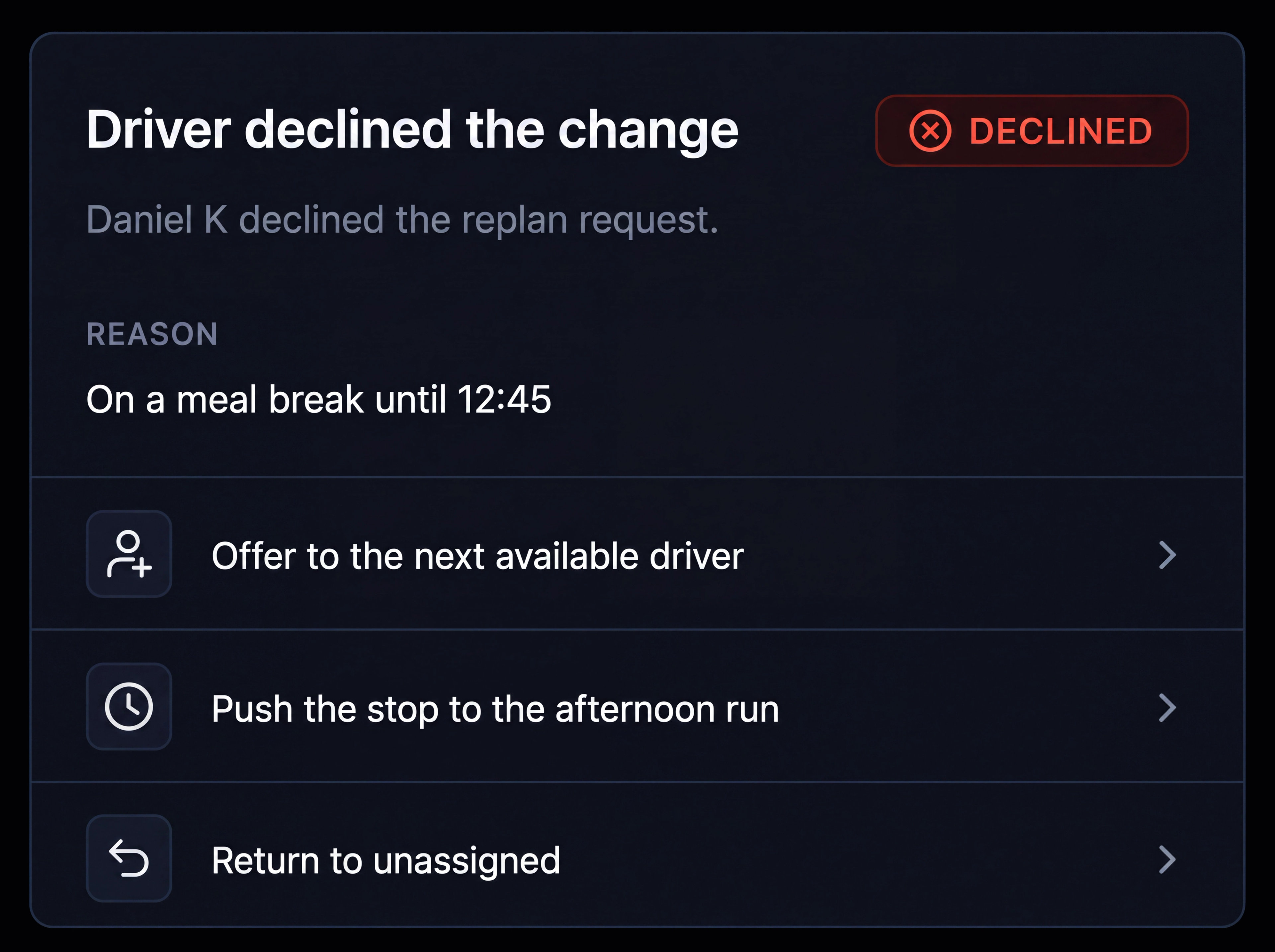
Change declined. The dispatcher is alerted, alternative options are shown and another change can be applied.
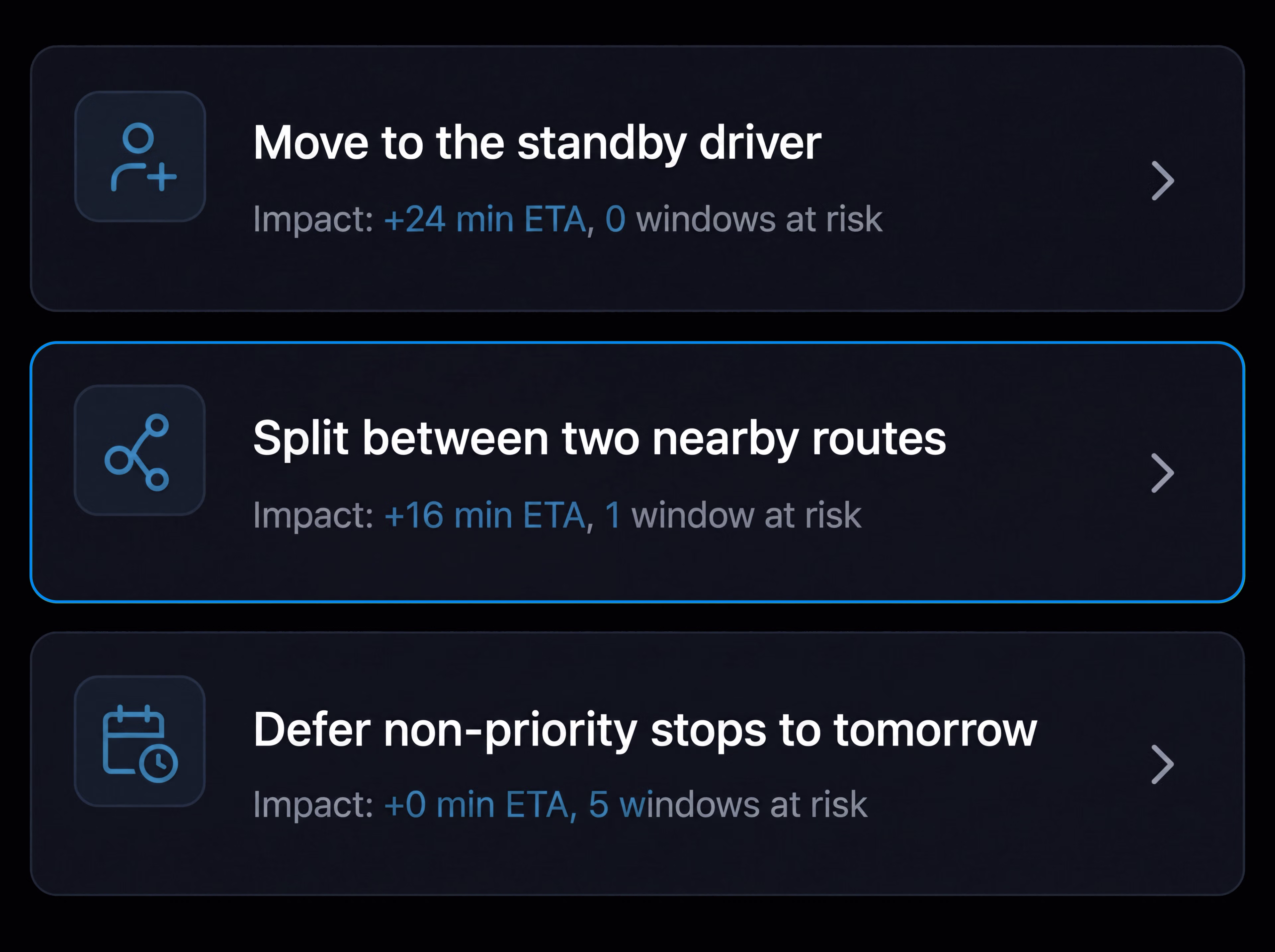
Shift reassigned. Reassign the remaining stops, the full shift or move the work to another day.
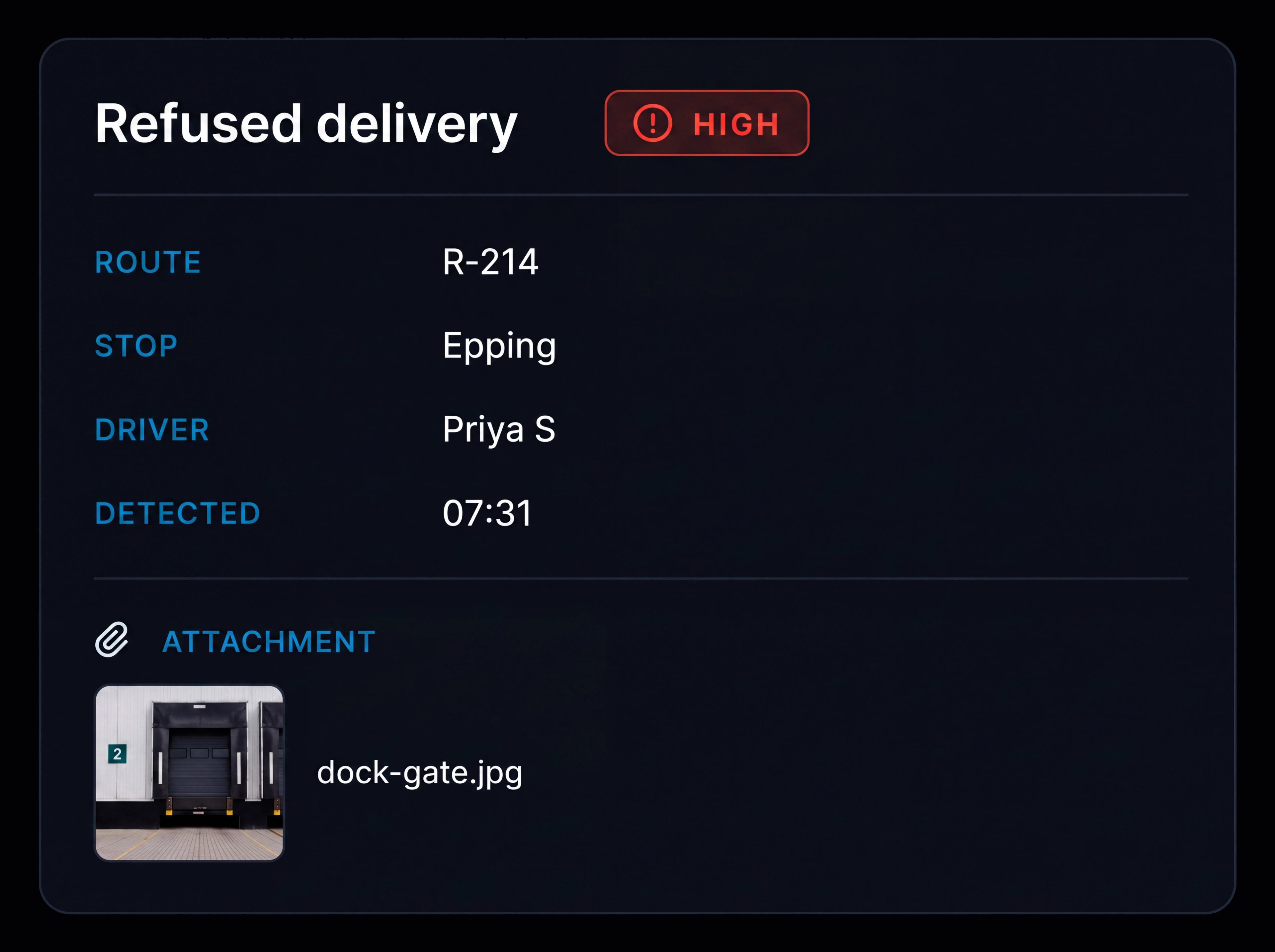
Exception details. See the exception type, route, driver, vehicle, stop, original window, cause, impact, owner and notes.
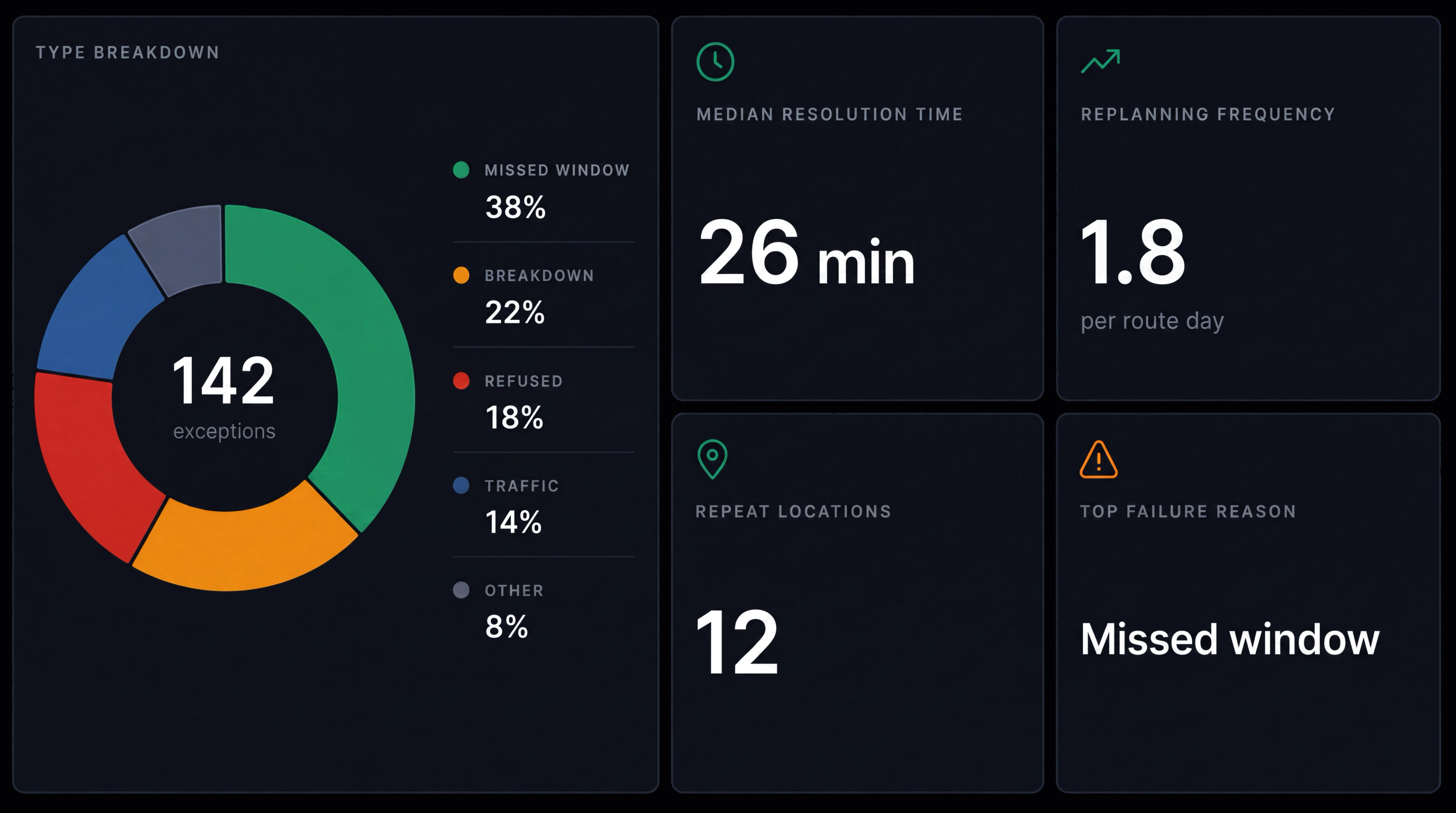
Exception reporting. Track exception types, average resolution time, replanning frequency, repeat locations and failed delivery reasons.
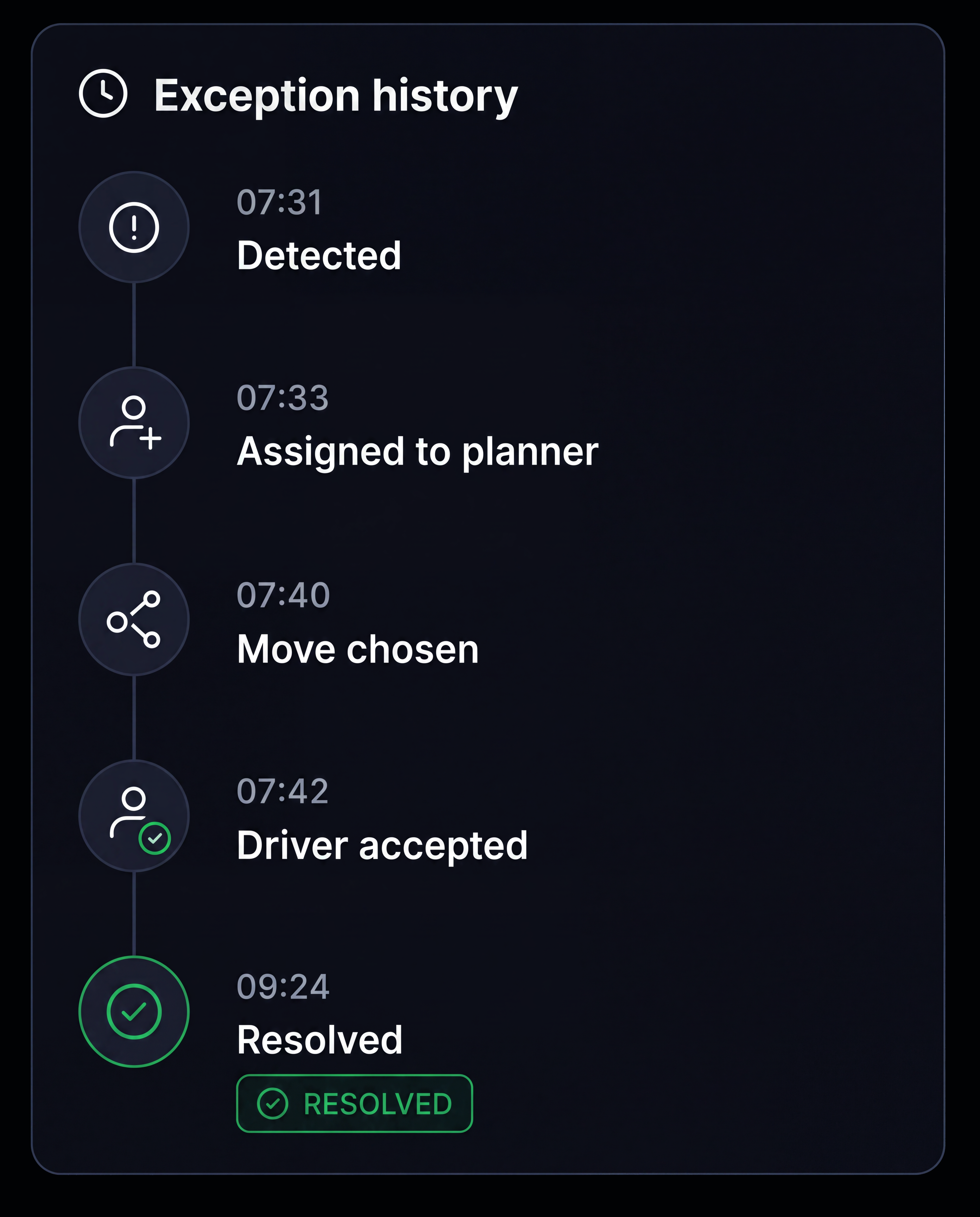
Full history. Keep the complete exception timeline from detection through to resolution.
Additional features
Auto Refresh
The board updates automatically without needing a reload.
Prioritisation
Set high, medium or low priority based on operational impact.
Route Rescheduling
Move a stop within the same driver's day.
Recovery Routes
Build a new route for affected stops.
Return to Depot
Send an item back and create the return job.
Resolution Owner
Assign someone to take ownership of each exception.
Attachments
Keep driver photos attached to the exception.
Repeat Locations
Identify locations where the same problems keep occurring.
Replanning Scope
Move a stop, route segment, full route or shift.
Impact Comparison
Compare ETA, distance, drive time and affected customers.
Change validation
Run eight checks before any change is applied.
Republish Routes
Publish updated routes and ETAs in one action.
Frequently Asked Questions
What can be moved when a plan breaks?
Move a single stop, a section of a route, a full route or an entire shift. Choose the scope first, and the available replanning options adjust to match.
How do I know which option is best?
Compare each option by ETA change, additional distance, drive time, affected jobs, time window impact and customers affected. The lowest impact option is highlighted with the reason it was recommended.
What stops a replan creating a new problem?
Each change is checked against driver availability, work and rest requirements, licences and skills, vehicle capacity and readiness, time window feasibility, route overlap and break compliance. Any failed check is flagged before the change can be applied.
What if the driver declines the change?
The dispatcher is alerted and alternative drivers and routes are suggested. If the driver does not respond, alternative options are surfaced rather than leaving the change unacknowledged.
Are customers told automatically?
Yes. When a change is applied, the new ETA is sent through the customer’s configured channels and the tracking page is updated. The notification and its delivery status are recorded against the job.
Handle Delivery Issues From One Place
Detect, compare, reassign and communicate in one workflow.
- Secure, role based access
- Complete audit trail of every change
- Communication via app, SMS and email
- Available across web and mobile