[ Video search & retrieval ]
Find the Right Footage. Faster.
Search what’s available, request what’s missing and review it in one place.

HOW RETRIEVAL WORKS
Search What Exists. Request What Does Not.
01
Search for footage
Search by vehicle or fleet, date and time, location or event type. Search the map by area or radius, and save searches for later.
02
See what is actually there
The trip timeline shows available, partial and unavailable coverage across the selected window, by camera.
03
Review and create a clip
Open the result, choose the camera views you need, find the moment and set the clip start and duration.
04
Save, download or share
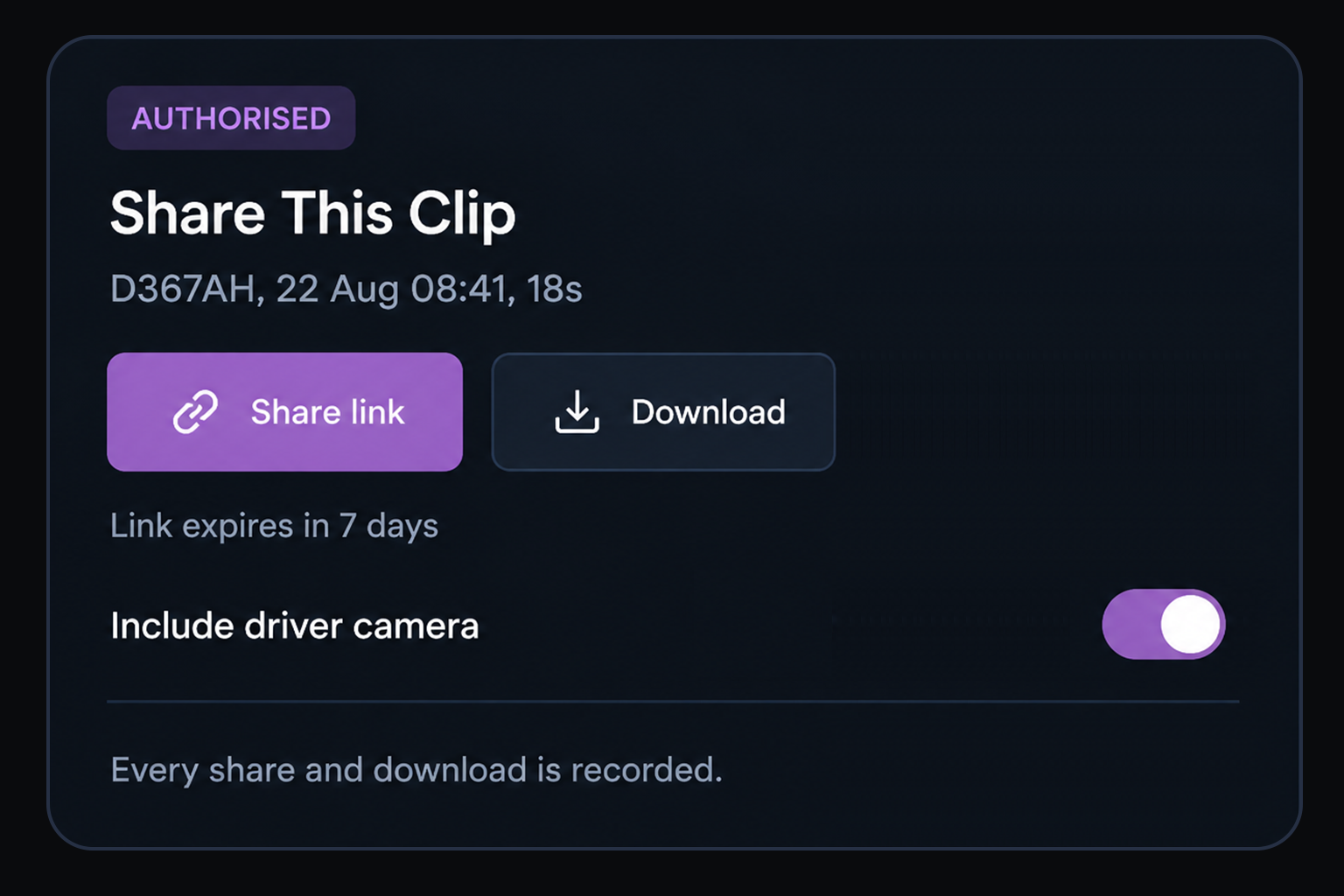
Save key moments, then download or share authorised clips. Every action is recorded.
FOOTAGE AVAILABILITY
Know What Footage Is Available Before You Need It
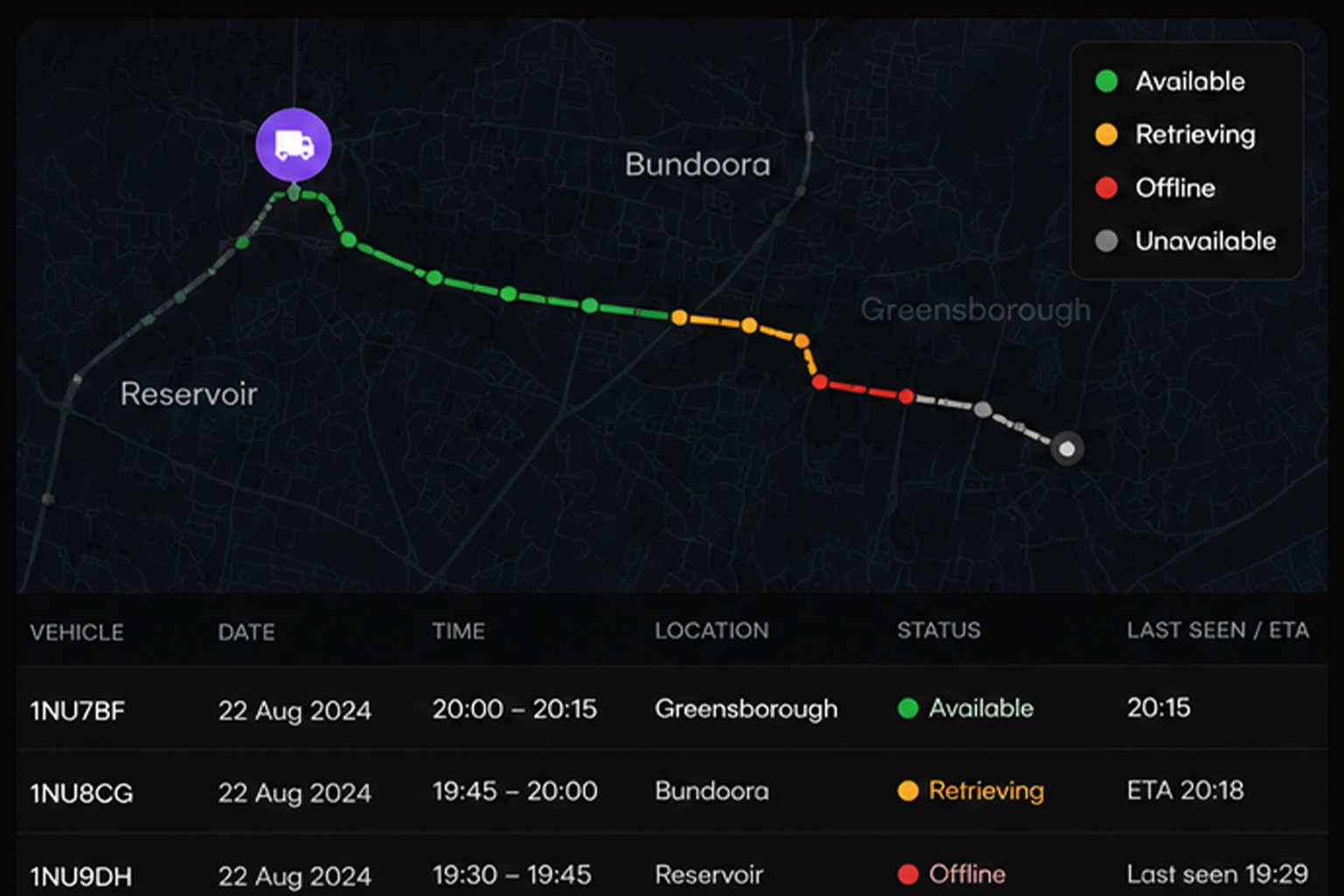
Coverage Status
See whether footage is available, still retrieving, offline, expiring soon or unavailable, with estimated retrieval and last seen times shown where relevant.
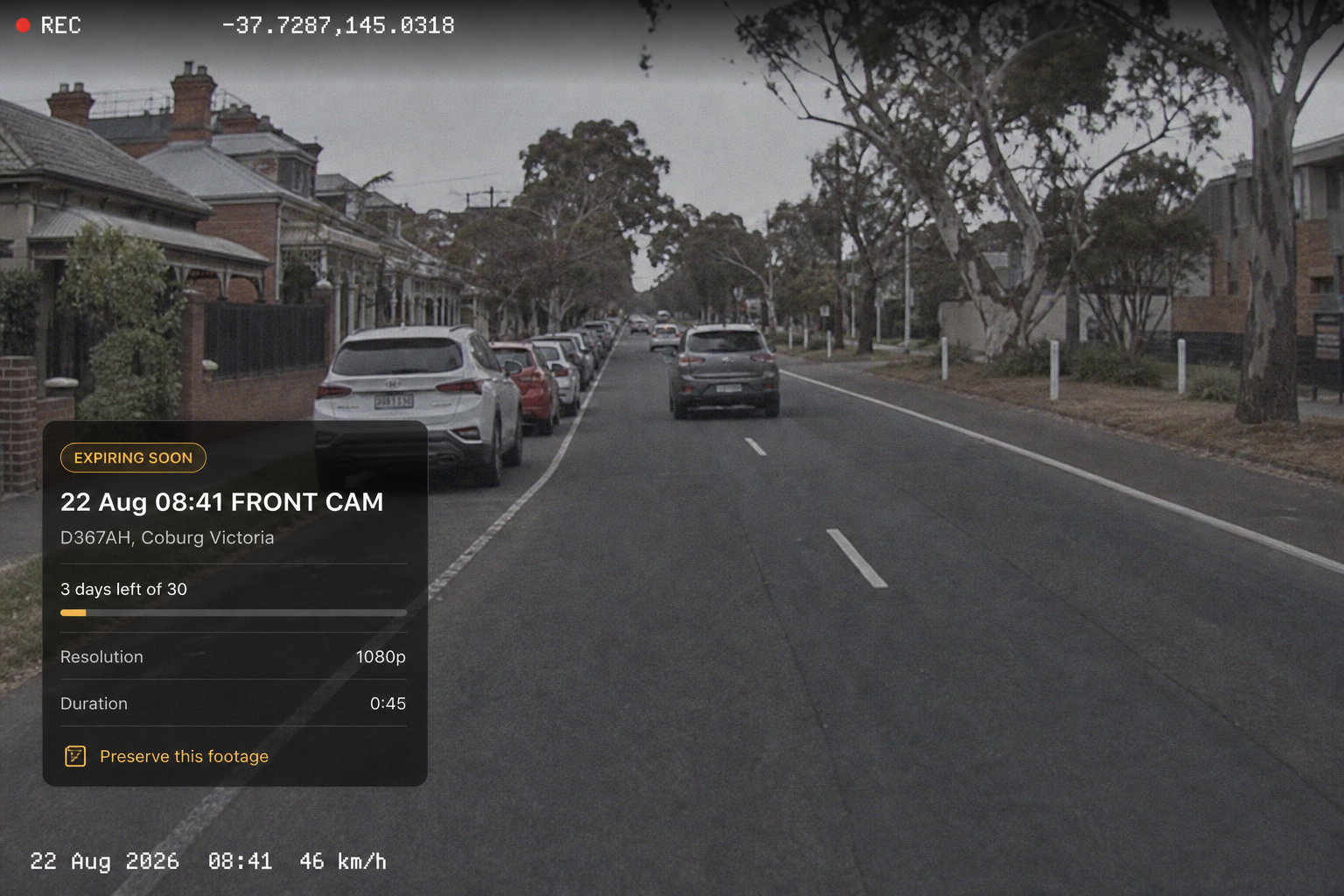
Retention Awareness
Flag footage that is close to expiring while there’s still time to preserve it, rather than discovering it’s gone later.
Find the Moment. See Every Angle.
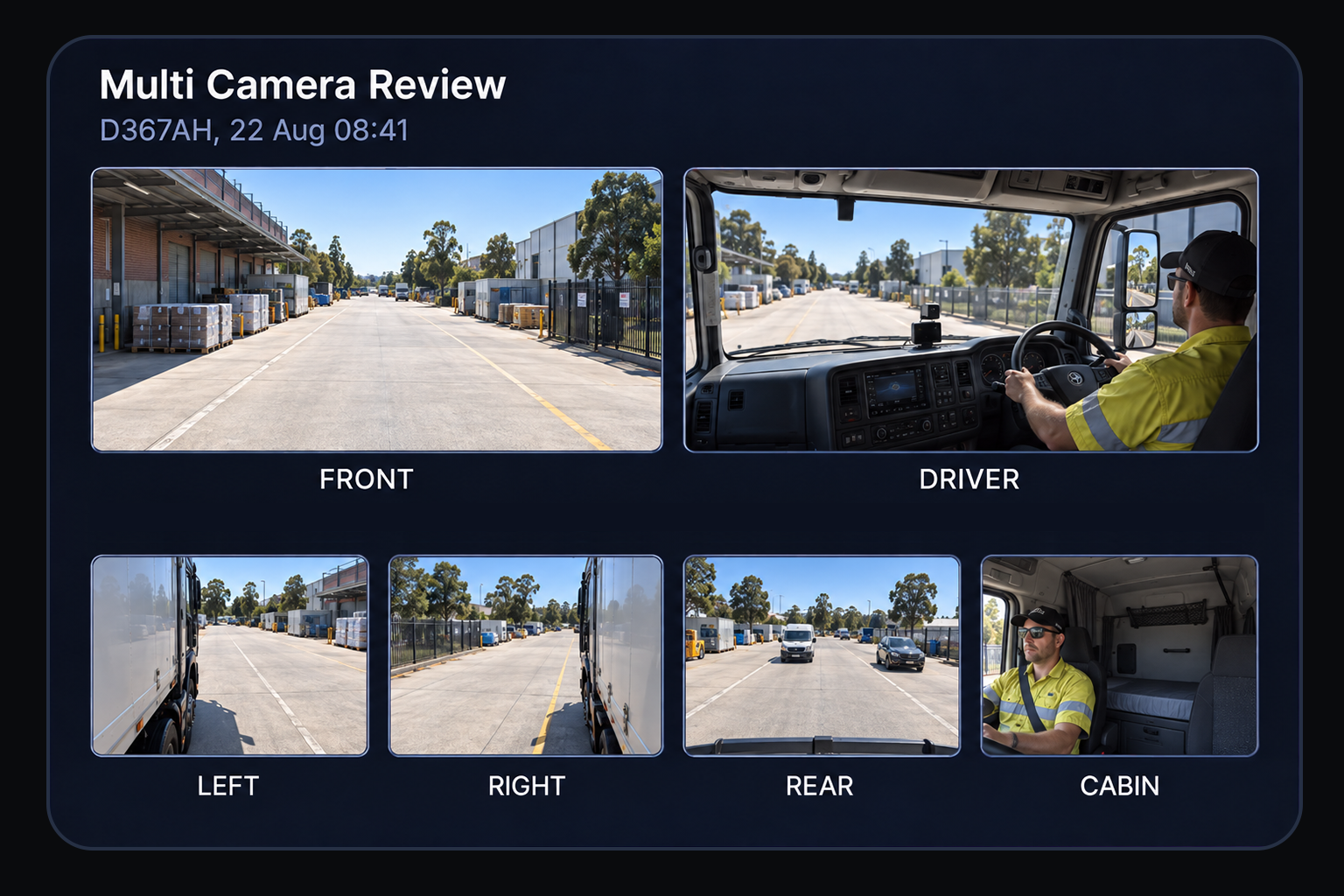
Multi camera review
Choose from front, driver, left, right, rear and cabin views, with resolution and frame rate shown for each.
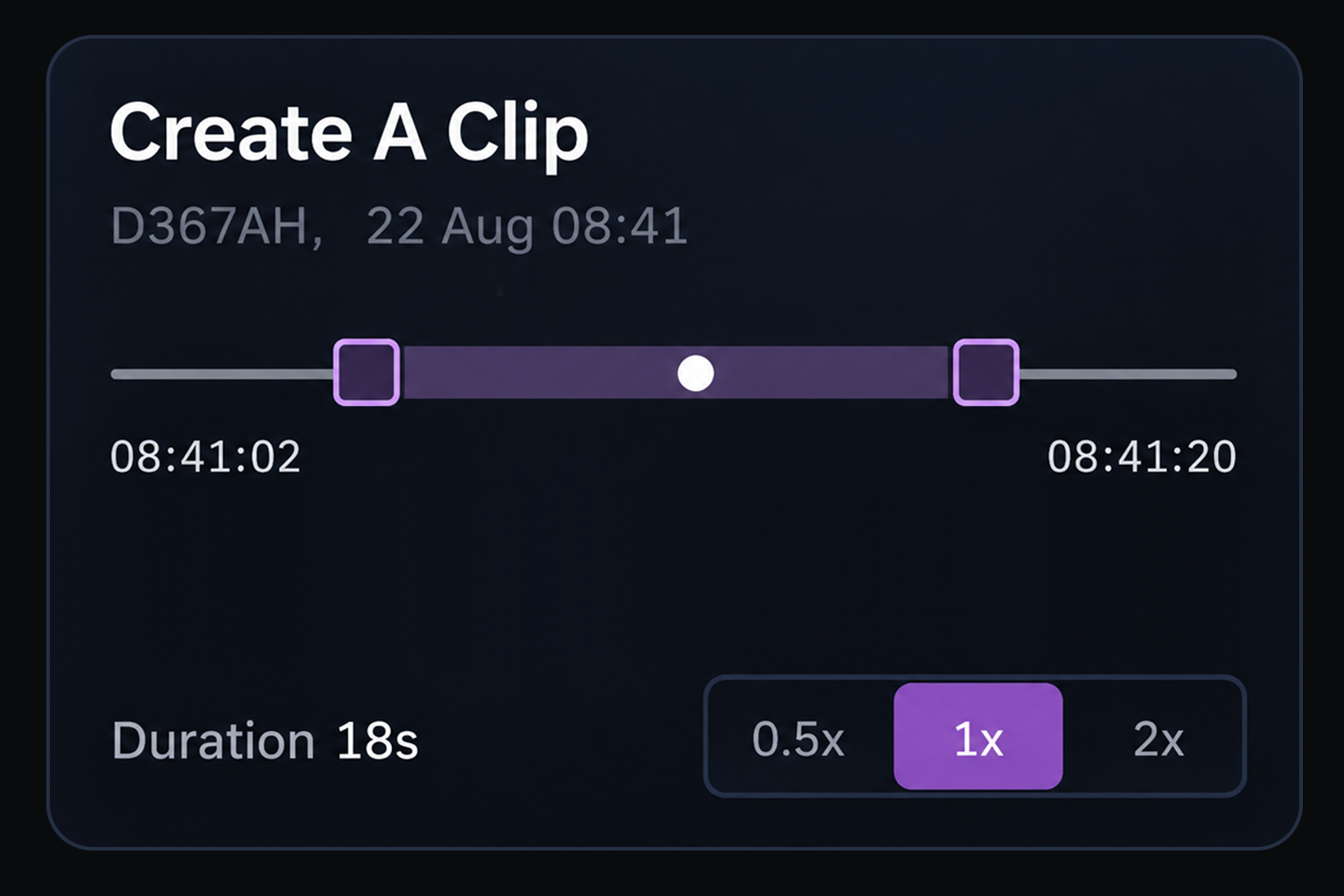
Precise clipping
Set the start and end points around the moment you need, without taking the whole trip.
Authorised sharing
Download or share footage with authorisation, with every action recorded against the clip.
Additional features
Search by Vehicle
Search one vehicle, a fleet or the full operation.
Search by Driver
Find footage linked to a driver's shifts.
Date and Time Range
Search down to the minute.
Map Search
Draw an area or set a radius.
Event Type Filter
Narrow results to the events you need.
Saved Searches
Keep searches your team uses regularly.
Coverage Awareness
See available, partial and unavailable footage by camera.
Request Missing Footage
Queue footage requests for anything not yet available.
Fulfilment Time
See the average time from request to available footage.
Bookmarks
Save key moments for later.
Resolution and Frame Rate
See the quality available for each camera.
Full Action Log
Every search, request, download and share is recorded.
From a Question to the Footage That Answers It
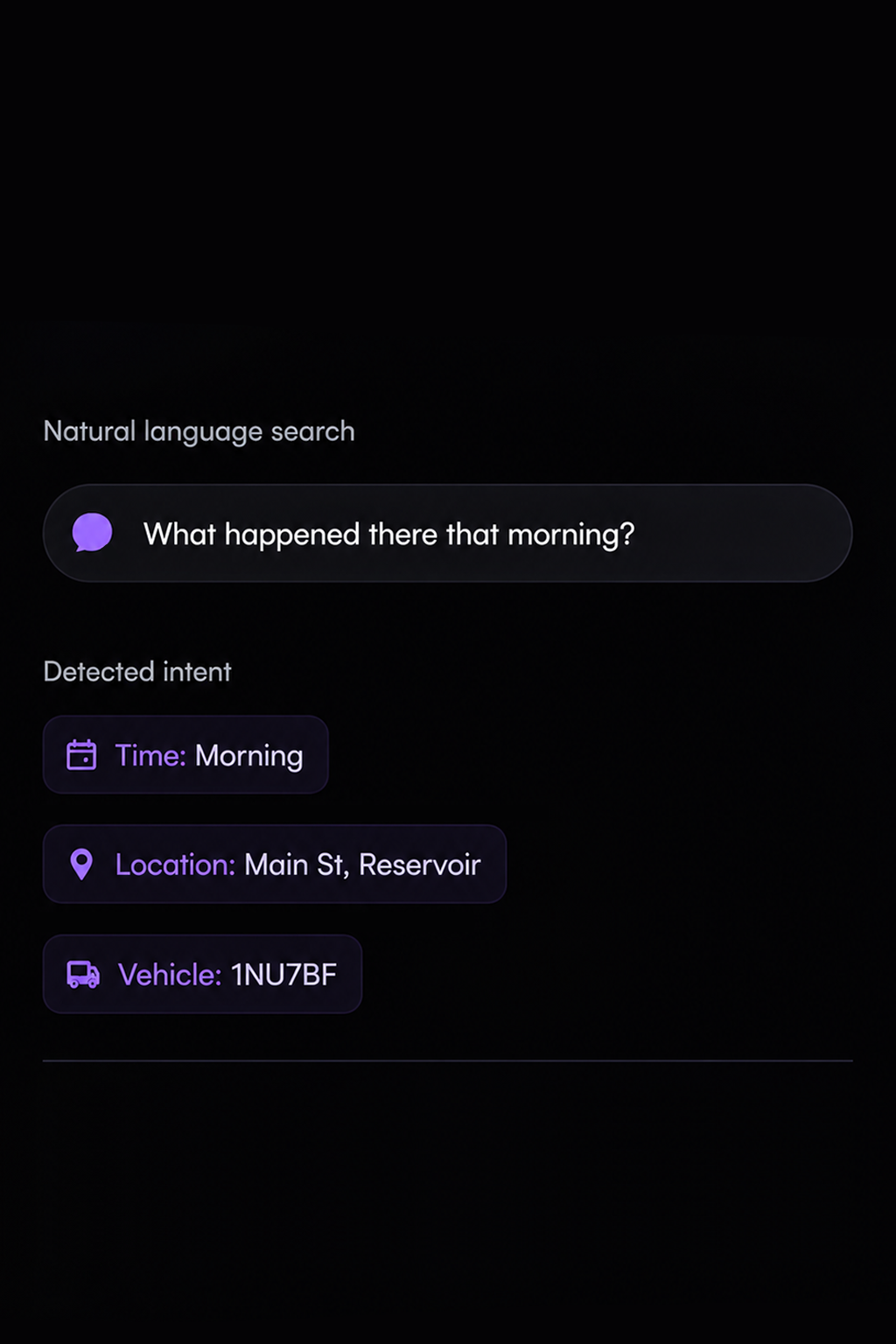
The question
What happened there that morning?
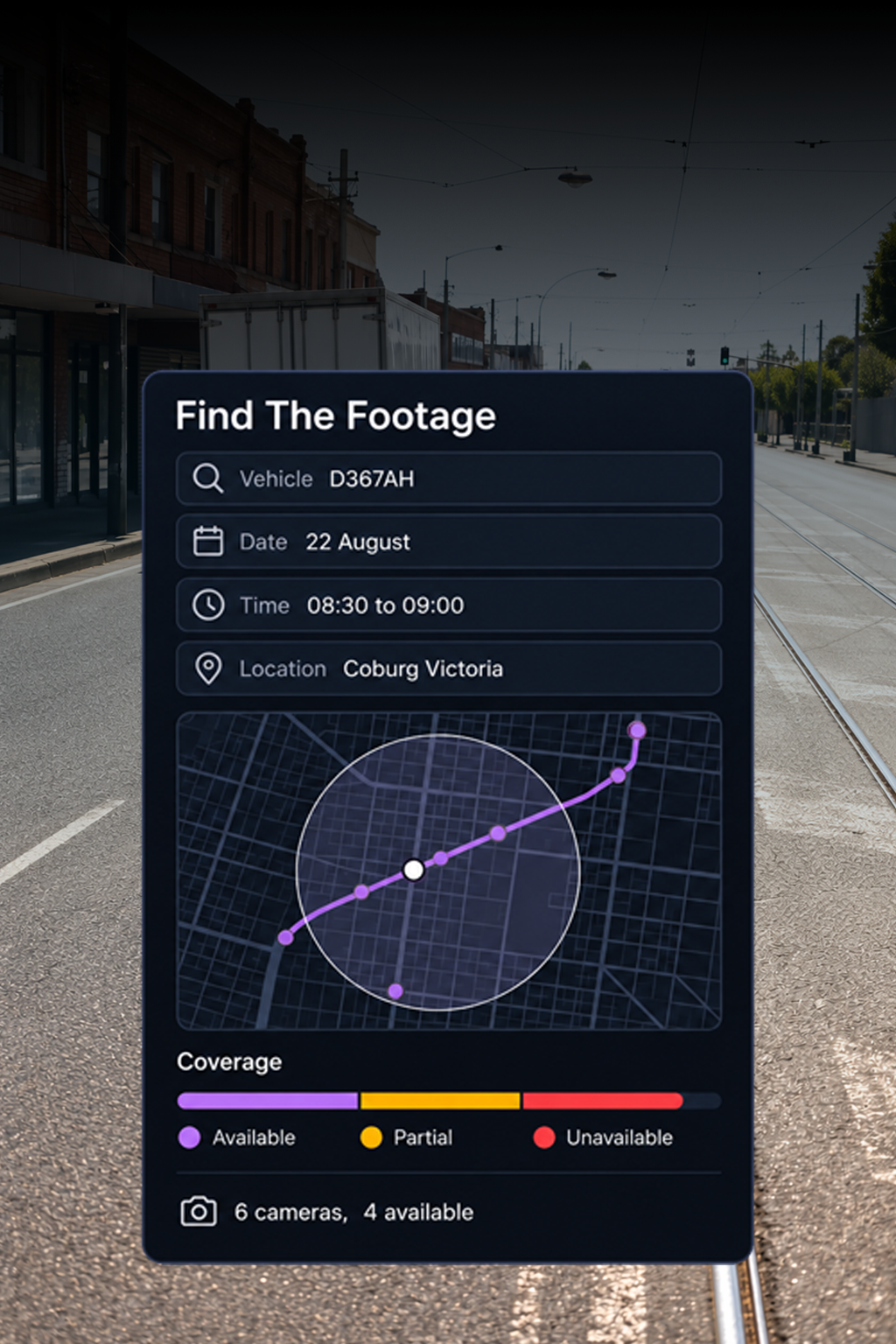
The search
Find the vehicle, time and location
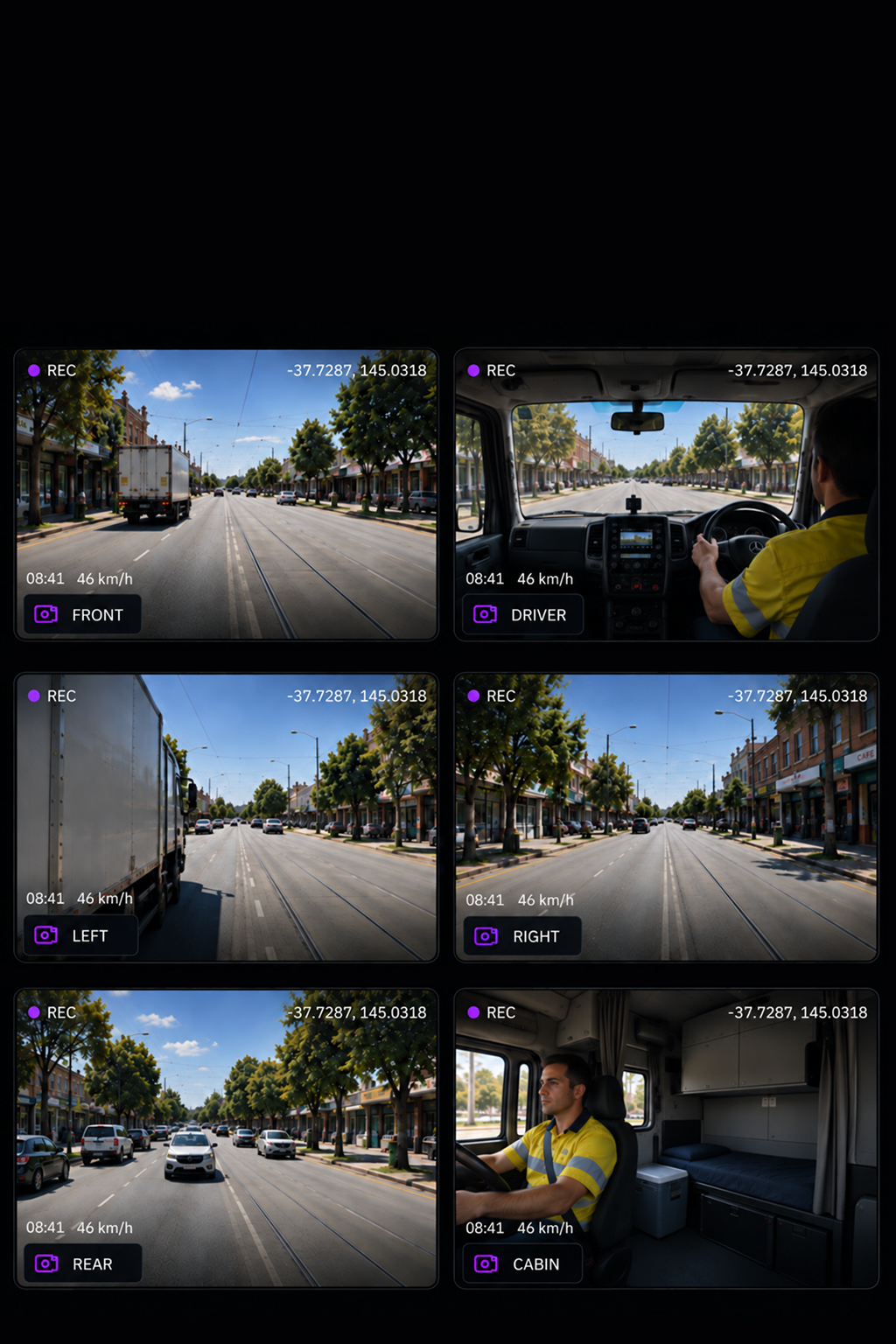
The footage
The moment, from every available angle
How do I know whether the footage exists?
The trip timeline shows available, partial and unavailable coverage across the search window, by camera. Results are also marked available, retrieving, offline, expiring soon or unavailable.
What if the footage has not been uploaded yet?
You can request it. The request shows its retrieval status and estimated time, with average fulfilment time across the fleet providing a clear expectation of when footage will be available.
What happens if the vehicle is offline?
The result shows when the vehicle was last seen and whether it was recording at disconnect. Requested footage is retrieved when the vehicle reconnects.
How does retention work?
Footage approaching expiry is flagged while there is still time to preserve it. Retention periods follow your own policy.
Can anyone download or share a clip?
No. Downloading and sharing require authorisation, and every action against footage is recorded, including searches and requests.
Can I search by where something happened rather than which vehicle?
Yes. Draw an area or set a radius on the map to find vehicles that were in a specific location at a specific time.
Get the Footage that Matters
Search what’s available, retrieve what’s missing and keep authorised clips ready to use.