[ Fleet Safety Alerts, Automation & Escalation Rules ]
Turn Safety Events Into Action
Set rules to alert the right people, create follow-up actions and escalate when something still needs attention.
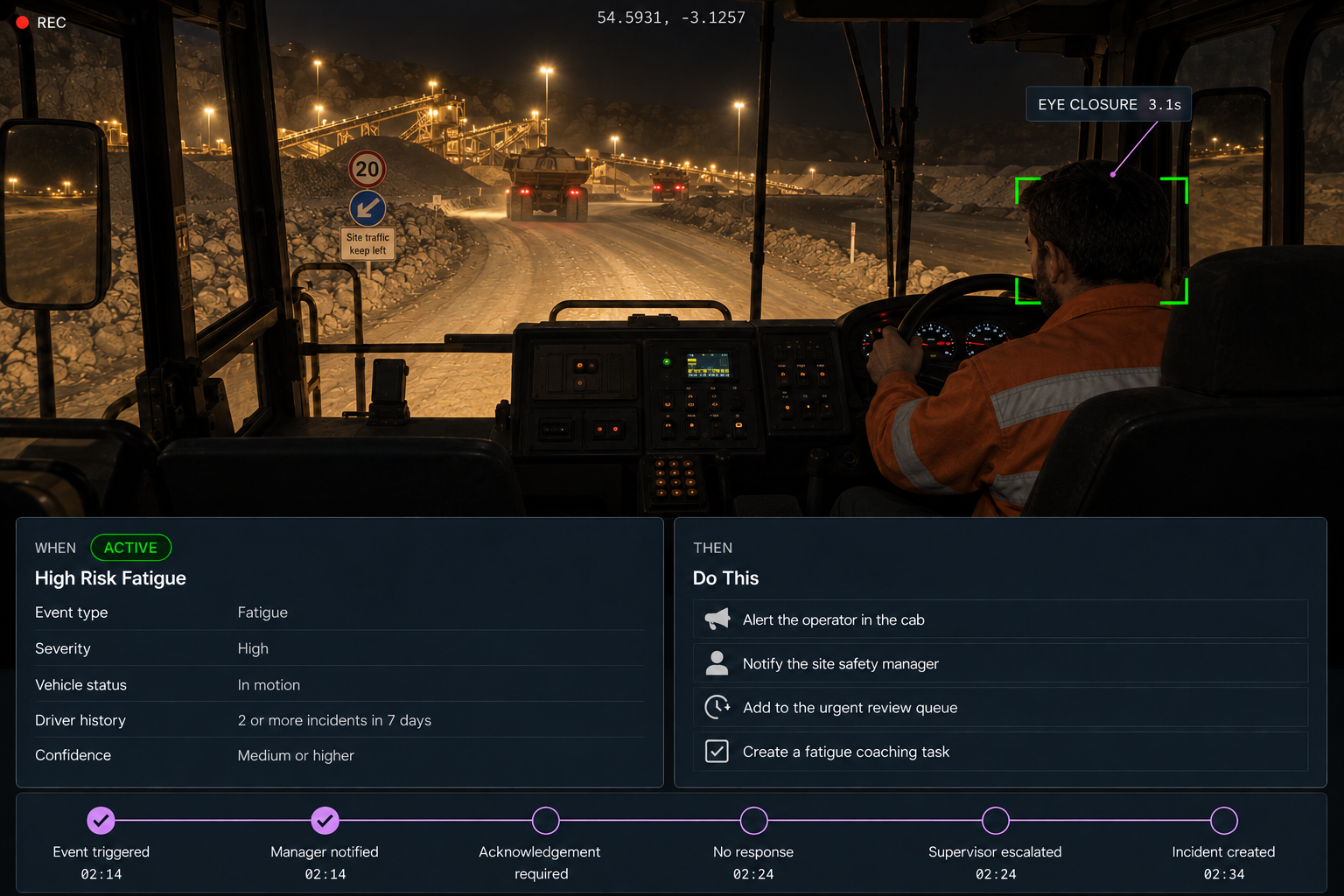
HOW A RULE IS BUILT
Choose the Event. Set the Response.
01
Build the rule
Choose the event source from Vision360, Drive360 or Route360, then define the conditions that trigger the rule, from event type and severity to vehicle, driver, location and schedule.
02
Choose the actions
Set what happens when the rule triggers: notify a user or group, alert the driver, send an SMS, create an action or send data to another system.
03
Pick the channels
Choose in app, email, SMS or in cab delivery, with the recipient, message, priority, quiet hours and delivery window defined for each.
04
Escalate when nothing happens
Define what counts as an acknowledgement and what happens when there is no response, so an unanswered alert moves to the next person.
IN PRACTICE
One Fatigue Event. From Alert to Action.
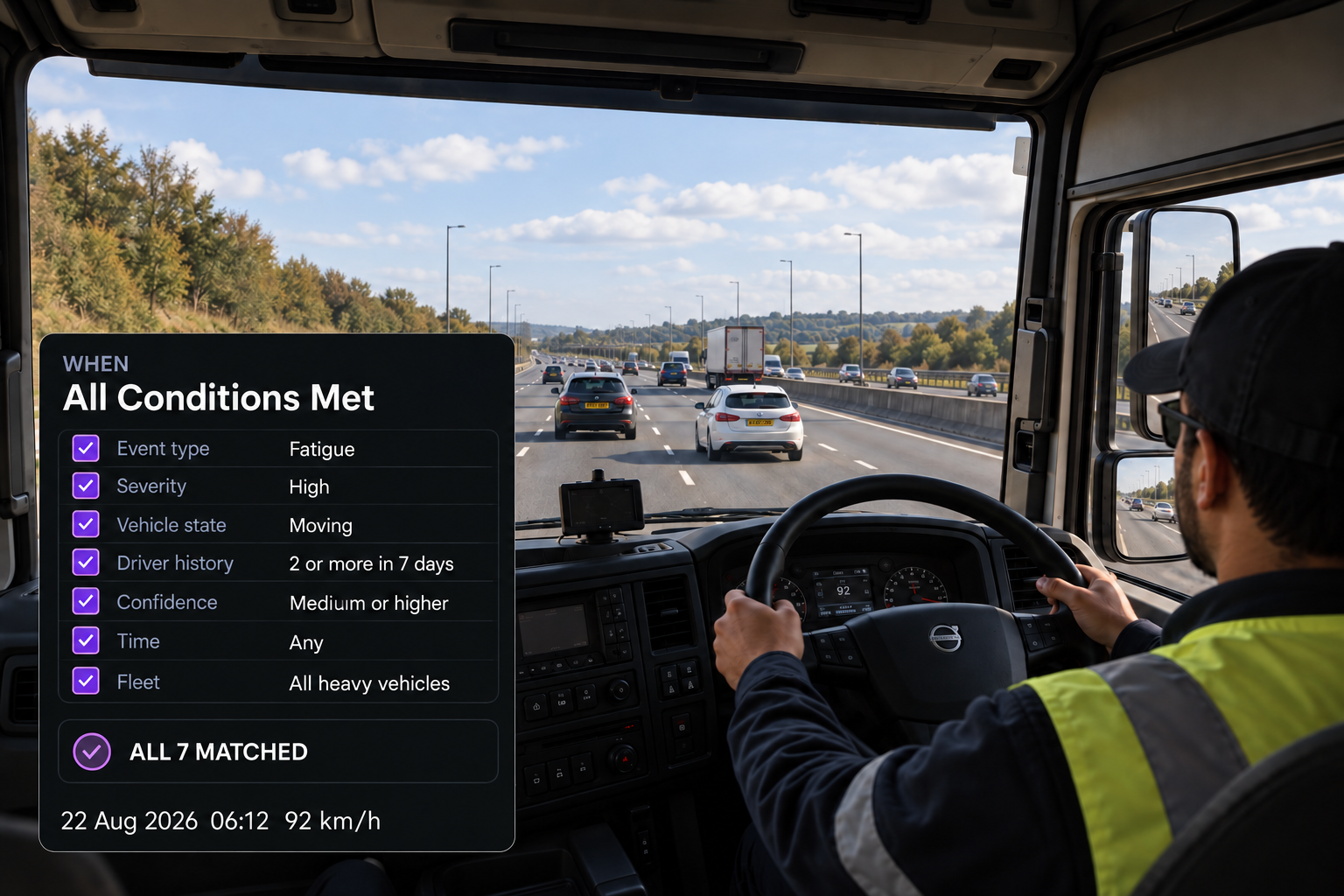
The Conditions
All conditions must be met: a high severity fatigue event is detected while the vehicle is moving, from a driver with two or more fatigue events in seven days, with medium confidence or higher, across all heavy vehicles.
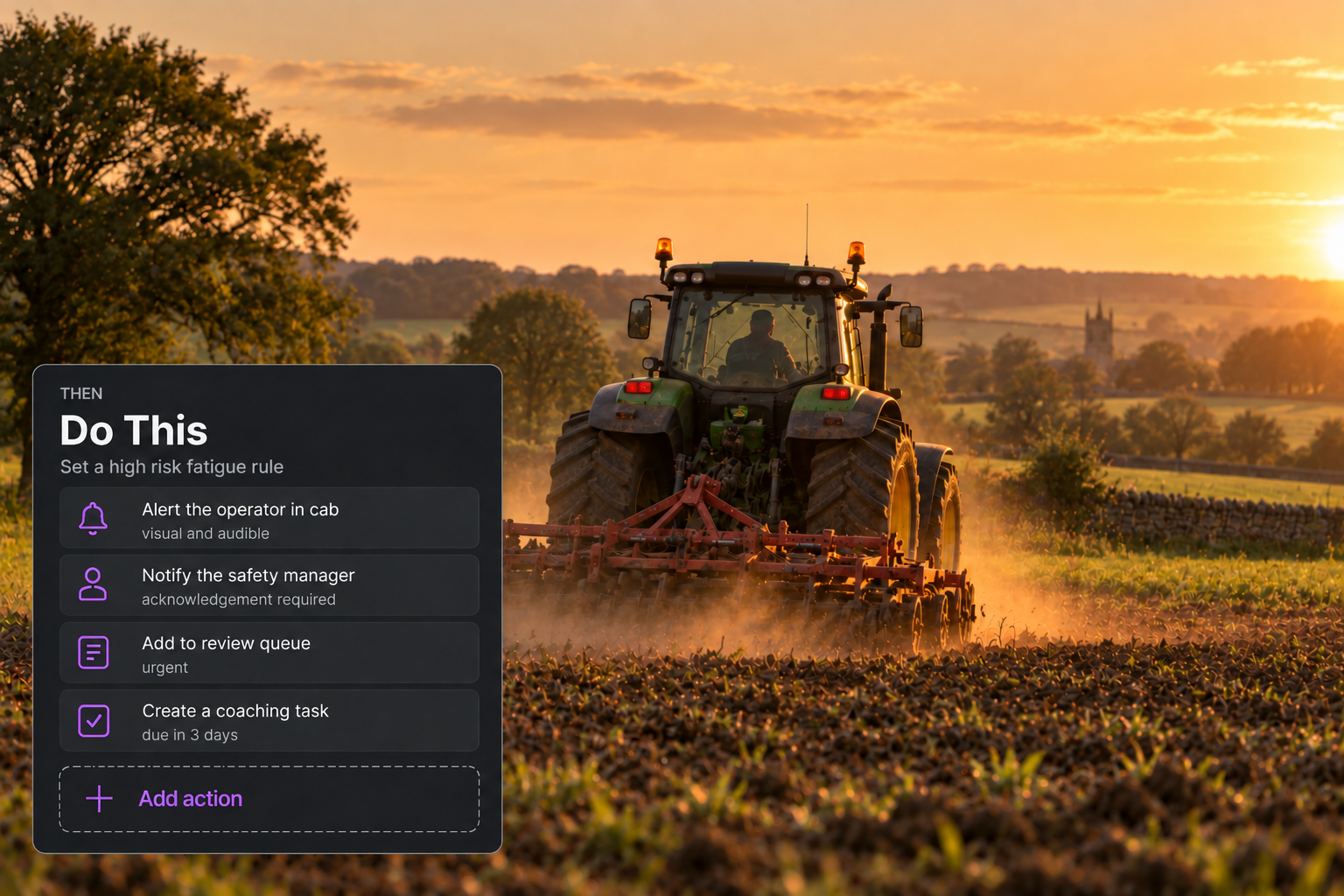
The Actions
Alert the driver in cab, notify the safety manager in app and by email, add the event to the urgent review queue and create a fatigue management coaching task.
Every Event Has a Defined Next Step.
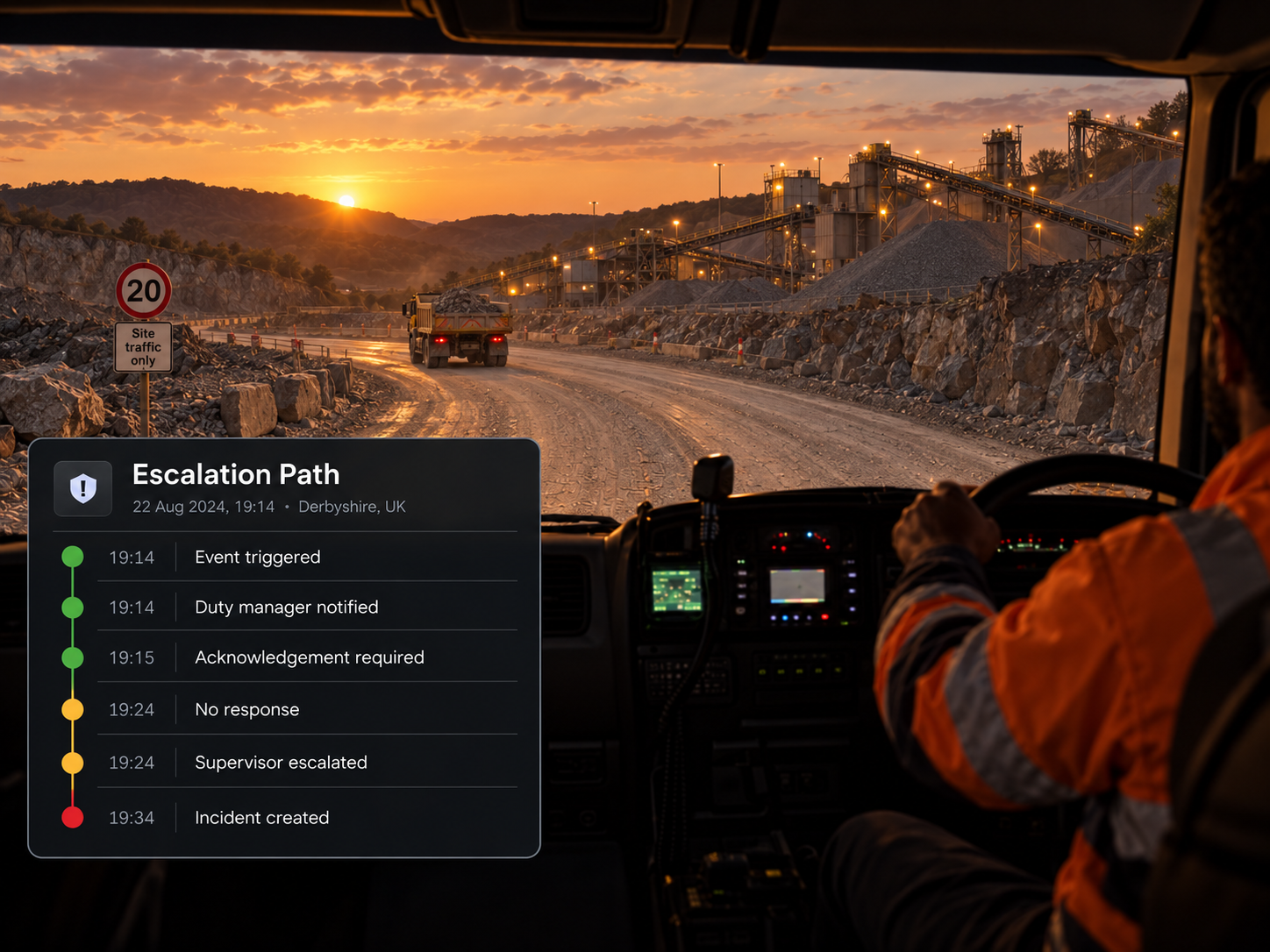
Escalation path
The event triggers a manager notification with acknowledgement required. If there is no response after ten minutes, it escalates to a supervisor. After twenty minutes without acknowledgement, an incident is created and added to the urgent queue.
Automation examples
Start with pre built workflows, then adapt them to your operation instead of building every rule from scratch.

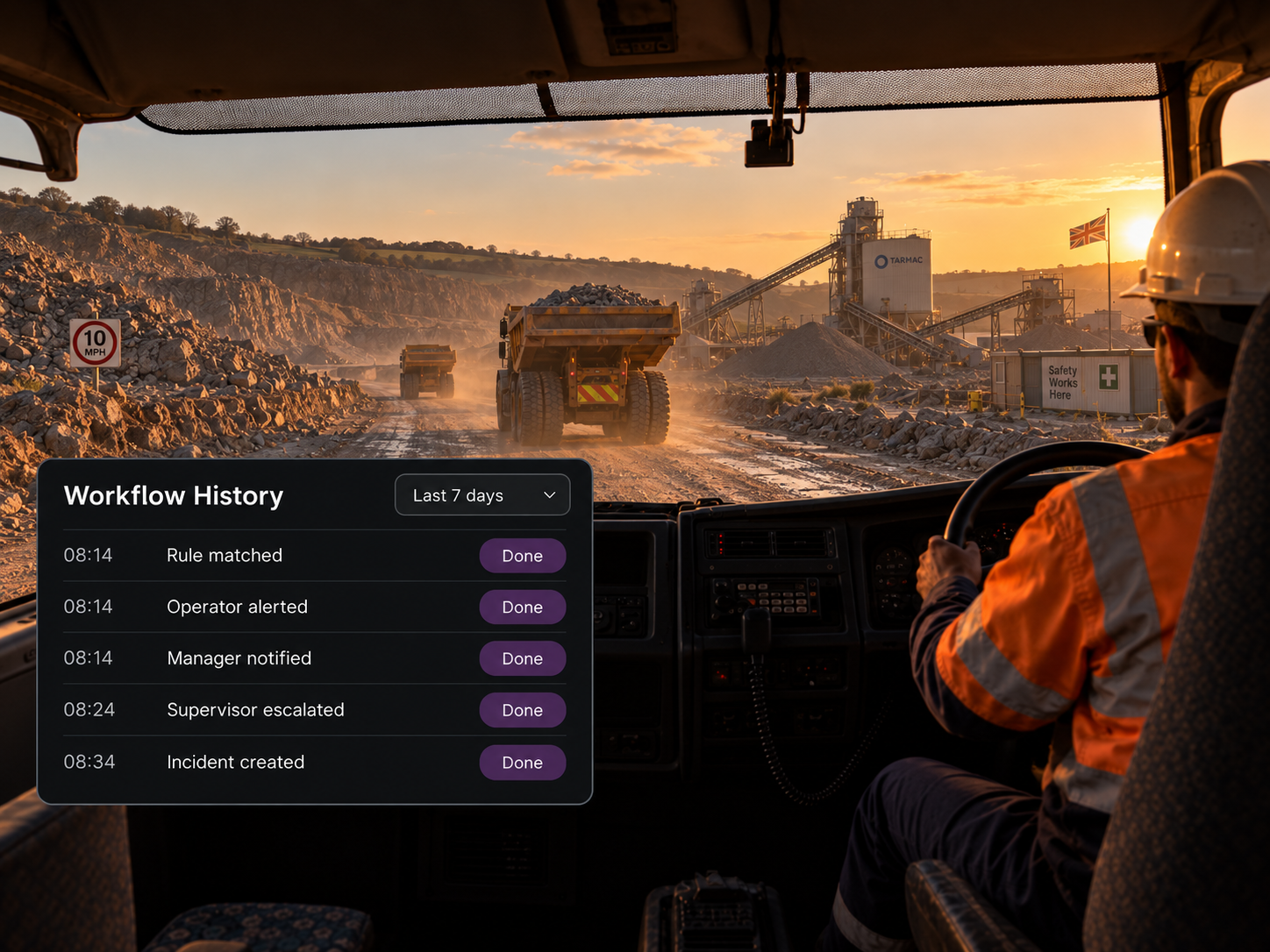
Workflow history
Track every step from trigger to resolution over the period you choose, so you can see what each rule actually did.
Automation & Escalation Controls
Three Event Sources
Build rules from Vision360, with connected vehicle and camera events brought into the same workflow.
Severity Conditions
Trigger rules only when an event reaches the required threshold.
Confidence Conditions
Exclude detections below the required confidence level.
Fleet and Driver Groups
Apply different rules to different vehicles, drivers or operations.
Location and Site
Apply a rule only where it is relevant, including depots, worksites, customer locations and defined operating areas.
Time and Schedule
Set different rules for different times or operating periods, including night operations, weekend schedules and other locally defined working periods.
Repeat Count
Trigger on repeated events rather than a single occurrence.
Acknowledgement State
Escalate when an alert has not been acknowledged.
In Cab Alerts
Alert the driver as well as the office.
Webhooks
Send event data to an external system.
Quiet Hours
Hold non urgent notifications outside working hours.
Message Templates
Keep messaging consistent across channels.
The Alert that Finds the Right Person.

The trigger
An event that meets every condition
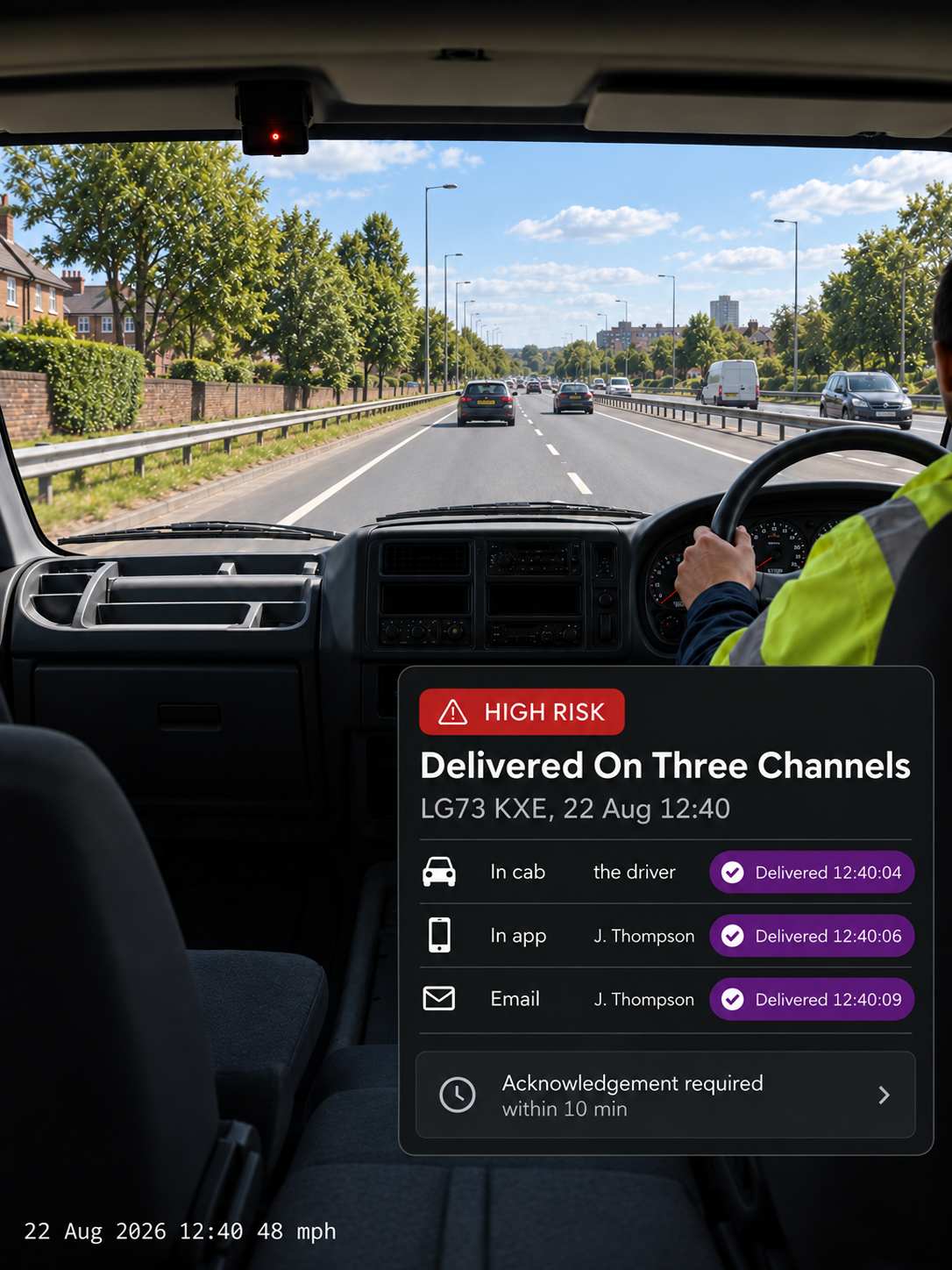
The notification
In cab, in app and by email
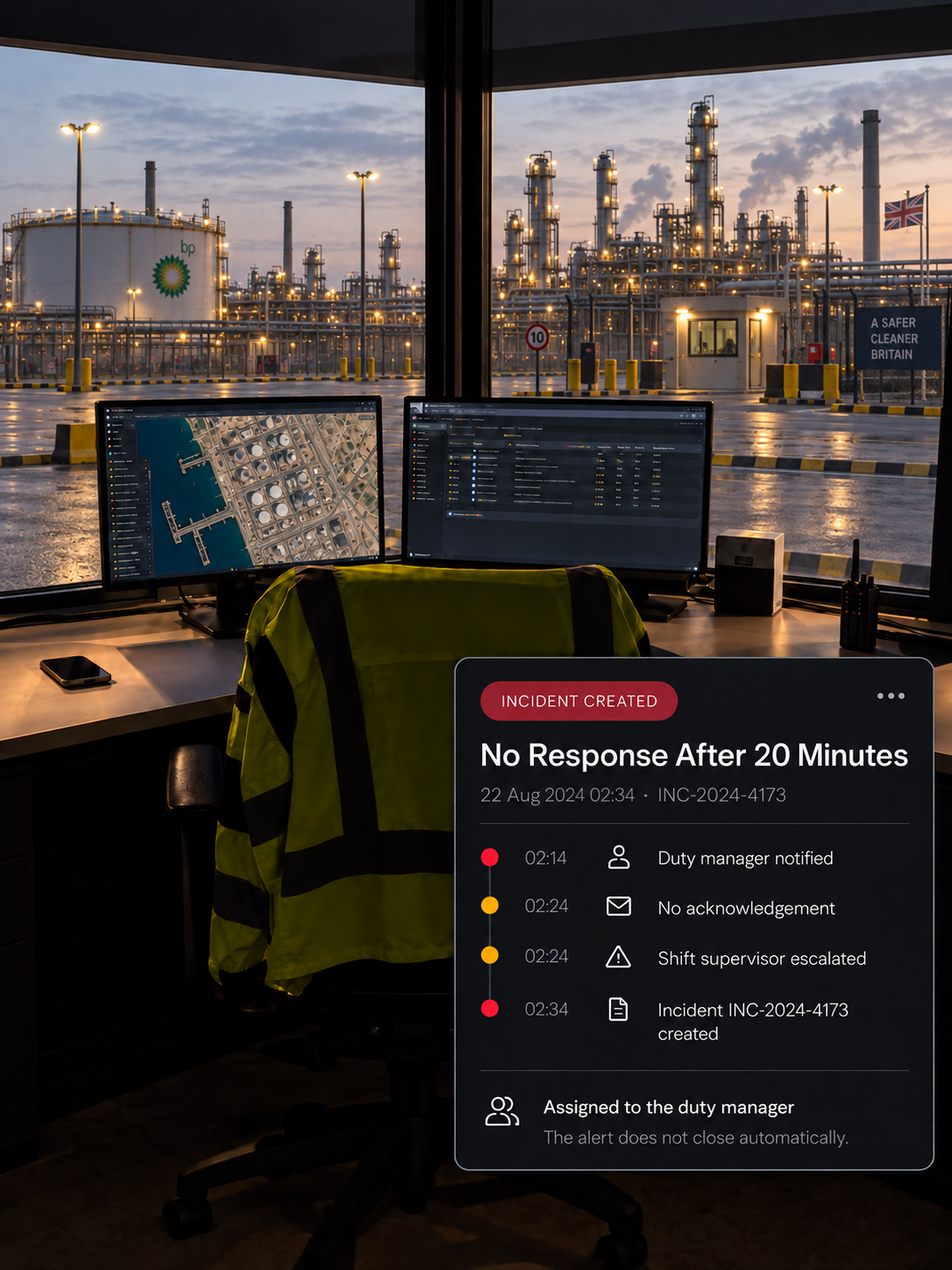
The escalation
No response after twenty minutes. An incident is created.
What can trigger an automation rule?
Events from Vision360, filtered by event type, severity, confidence, vehicle or driver group, location, time, repeat count or acknowledgement state. All defined conditions must be met.
What can a rule do?
Notify users in app or by email, alert the driver in cab, send an SMS, add an event to a review queue, create a coaching task or incident, update a record or send data to an external system.
How does escalation work?
Define what counts as an acknowledgement and how long to wait. For example, notify a manager, escalate to a supervisor after ten minutes without acknowledgement, then create an urgent incident after twenty.
Can we stop alerts at night?
Yes. Set quiet hours, delivery windows and timezones for each channel, so non-urgent notifications wait while urgent alerts continue through.
Can rules fire on a pattern rather than one event?
Yes. Use repeat count to trigger a rule only after a defined number of events within a rolling window, helping separate repeated risk from isolated events.
Do we have to build every rule ourselves?
No. Start with pre built automation examples and adapt them to your operation. Workflow history then shows how each rule has performed, so you can refine it based on what actually happened.
Every Event Reaches Someone Who Can Act
The right alert, to the right person, with escalation already built in.